

Appearance
Skip to content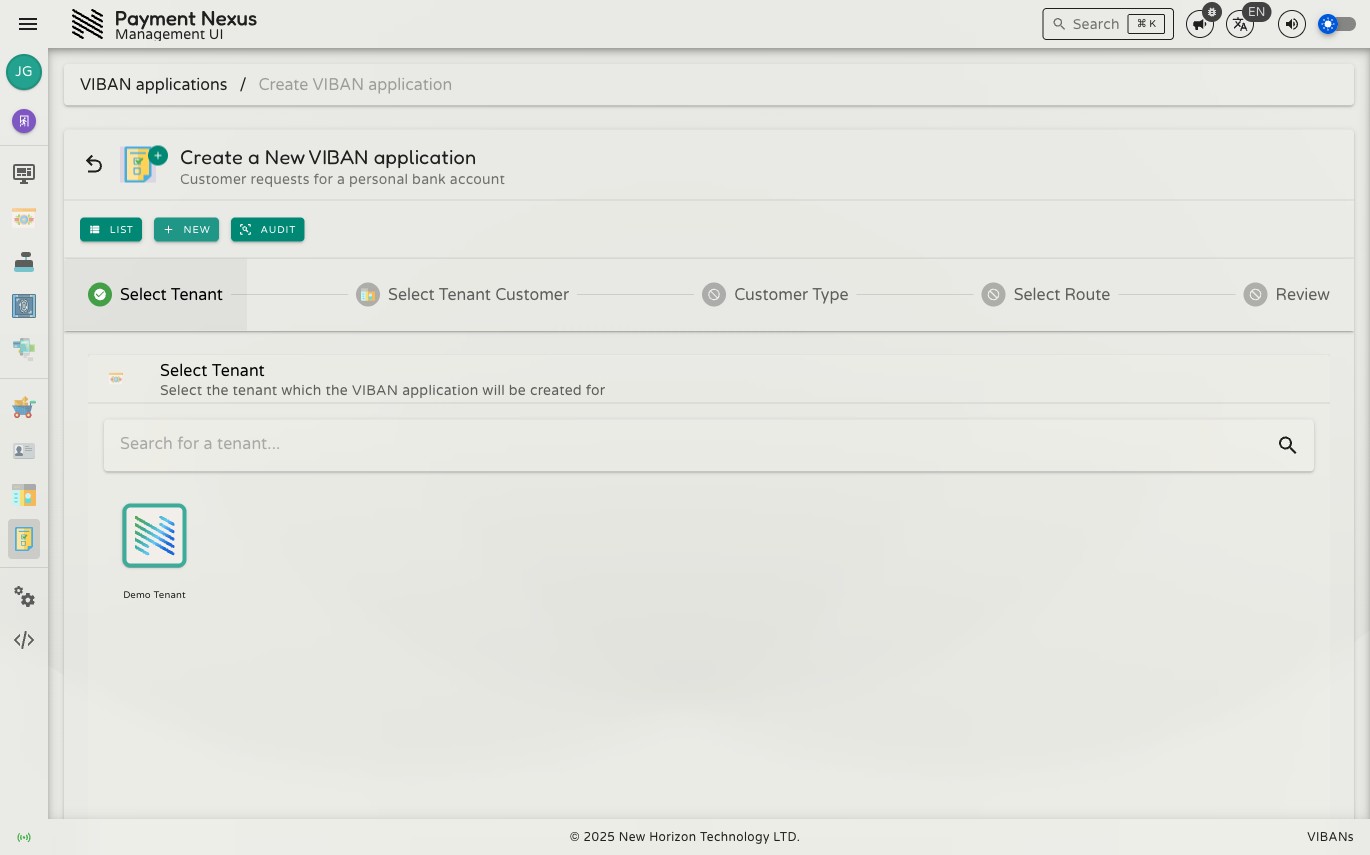
Creating a VIBAN Application
To create a VIBAN application for a customer, use the step-by-step wizard instead of a standard form. Click New in the VIBAN Applications directory to start.
Step 1 — Select Tenant
Choose the tenant for this application. Use the search field to filter the list, then click a result to select it.
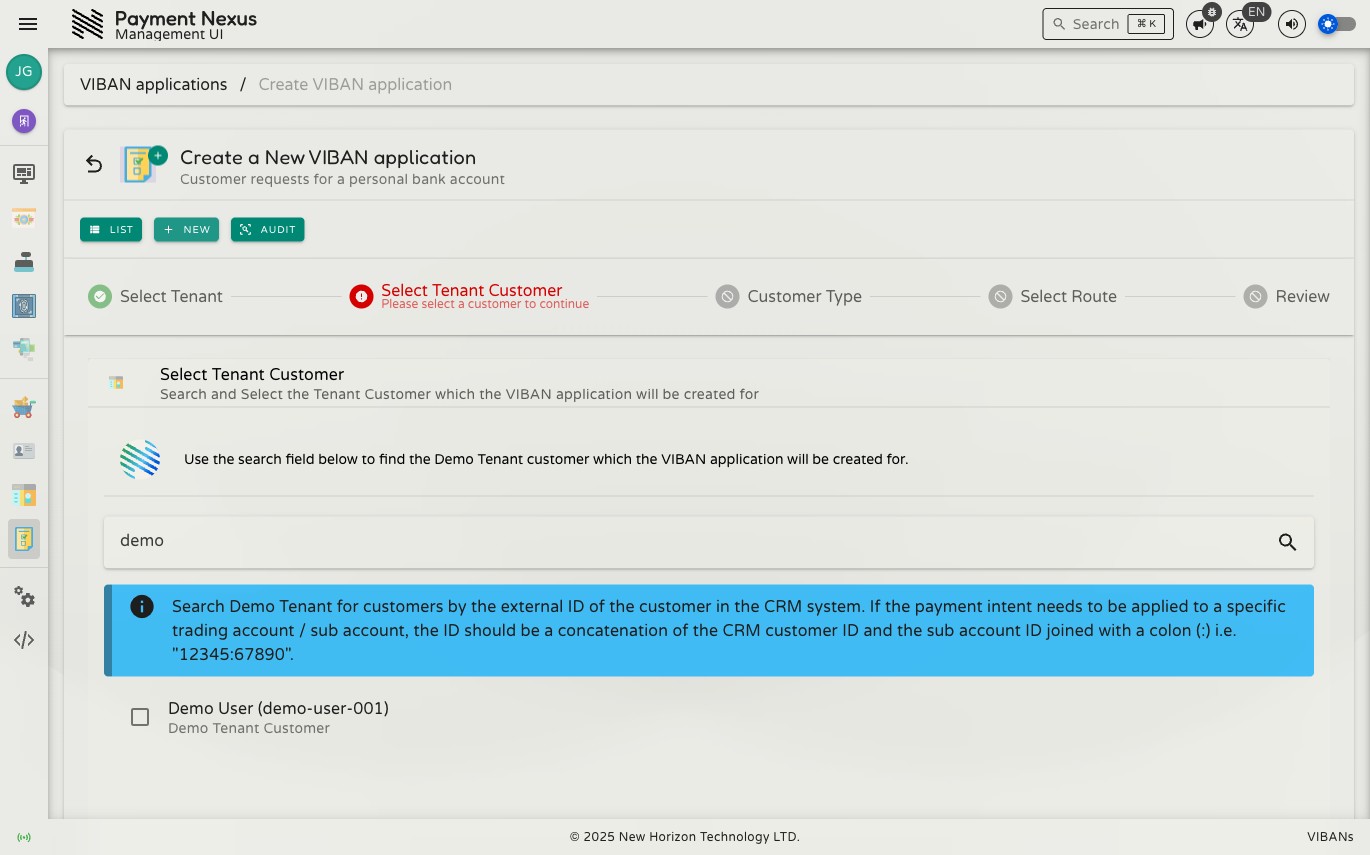
Step 2 — Select Tenant Customer
Search for the customer by their external ID in the tenant CRM. If the request applies to a specific trading account or sub-account, join the two IDs with a colon — for example 12345:67890.
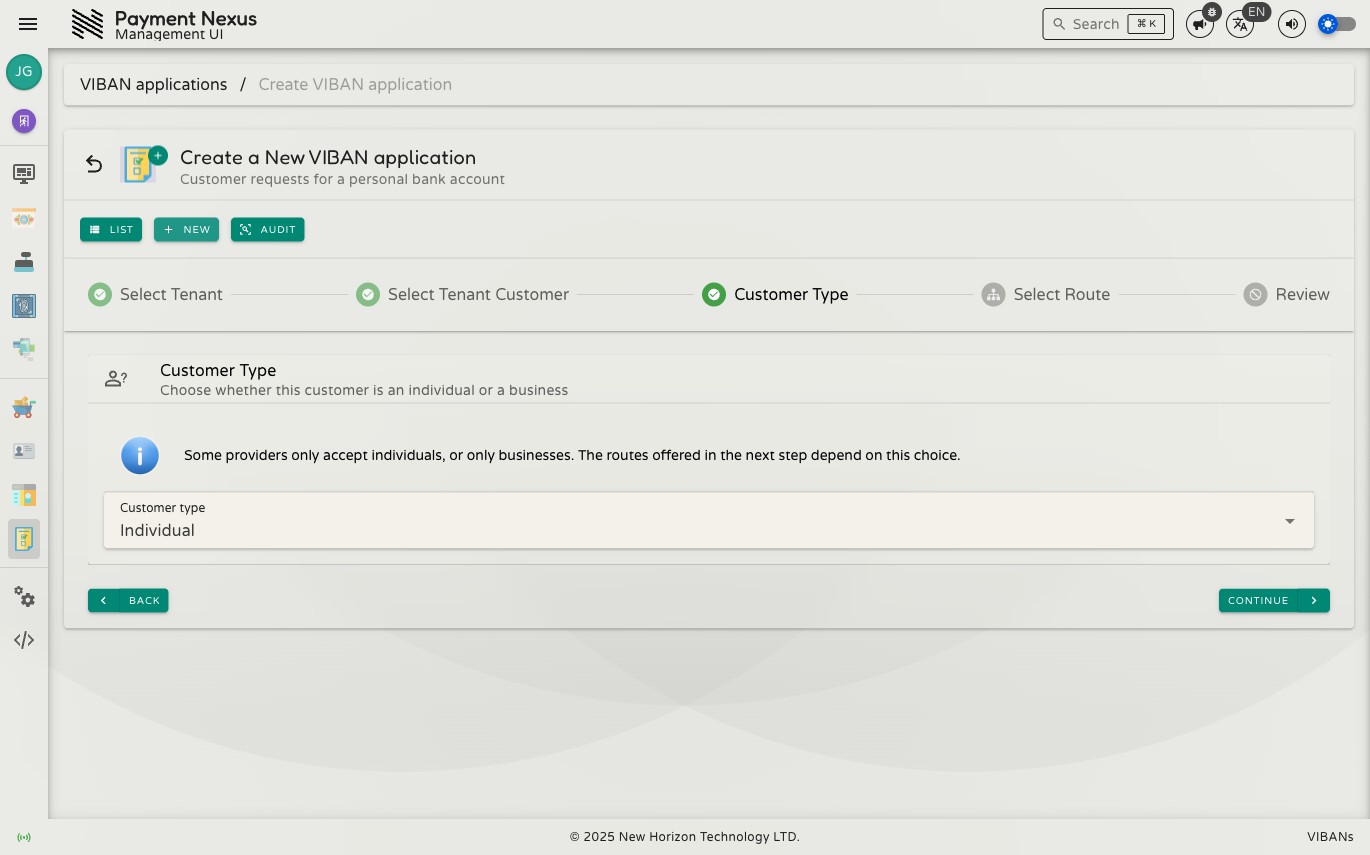
Step 3 — Customer Type
Choose whether this customer is an Individual or a Business. Some providers accept only one customer type, so this choice determines which routes appear in the next step.
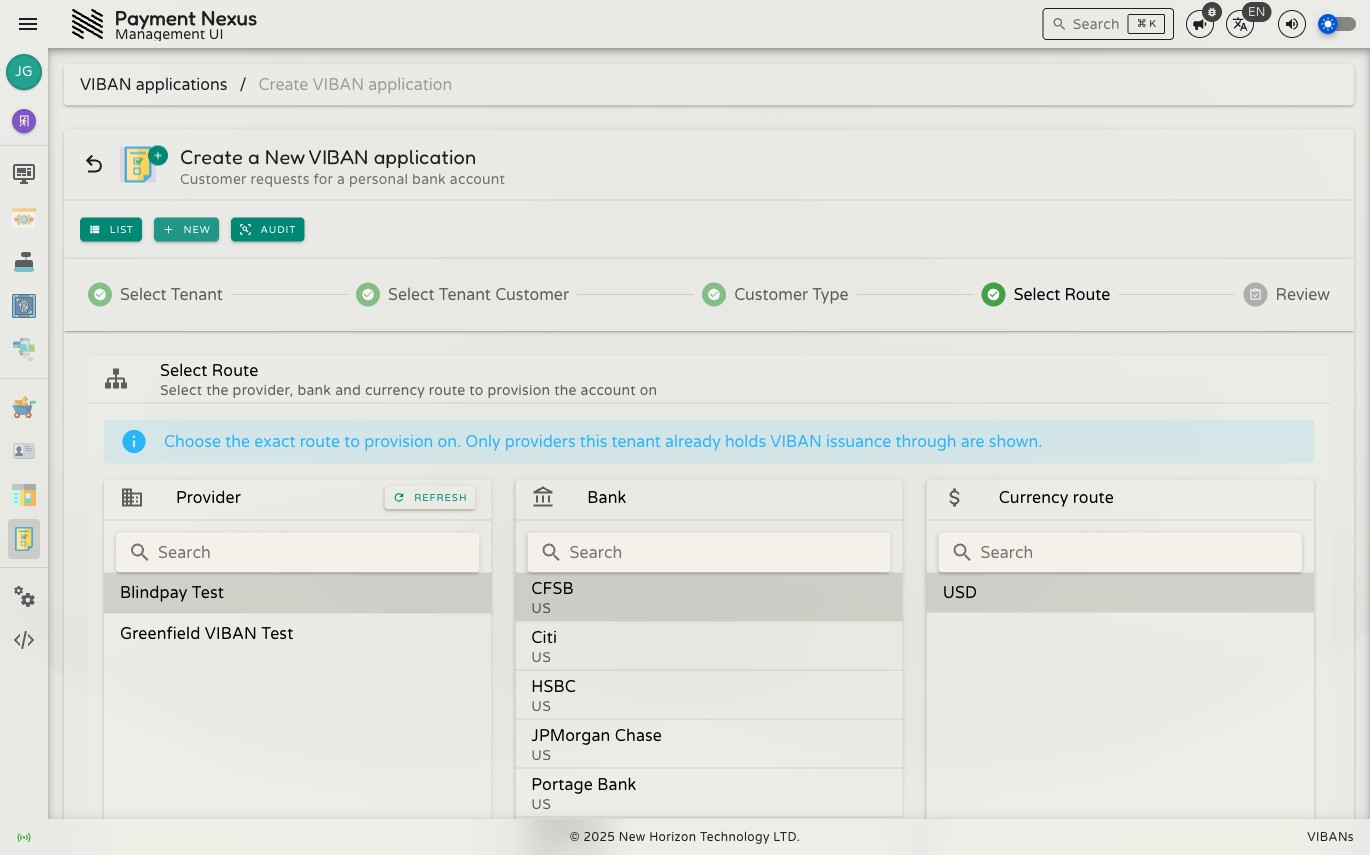
Step 4 — Select Route
Choose the route to issue the VIBAN on: Provider, then Bank, then Currency route. The list shows only providers that already issue VIBANs for this tenant.
Provider-cardinality conflicts
If this customer already has a VIBAN under a different account with the same provider family, the wizard still lets you select the route. The conflict appears at the Review step, where you can override it if you have the required permission.
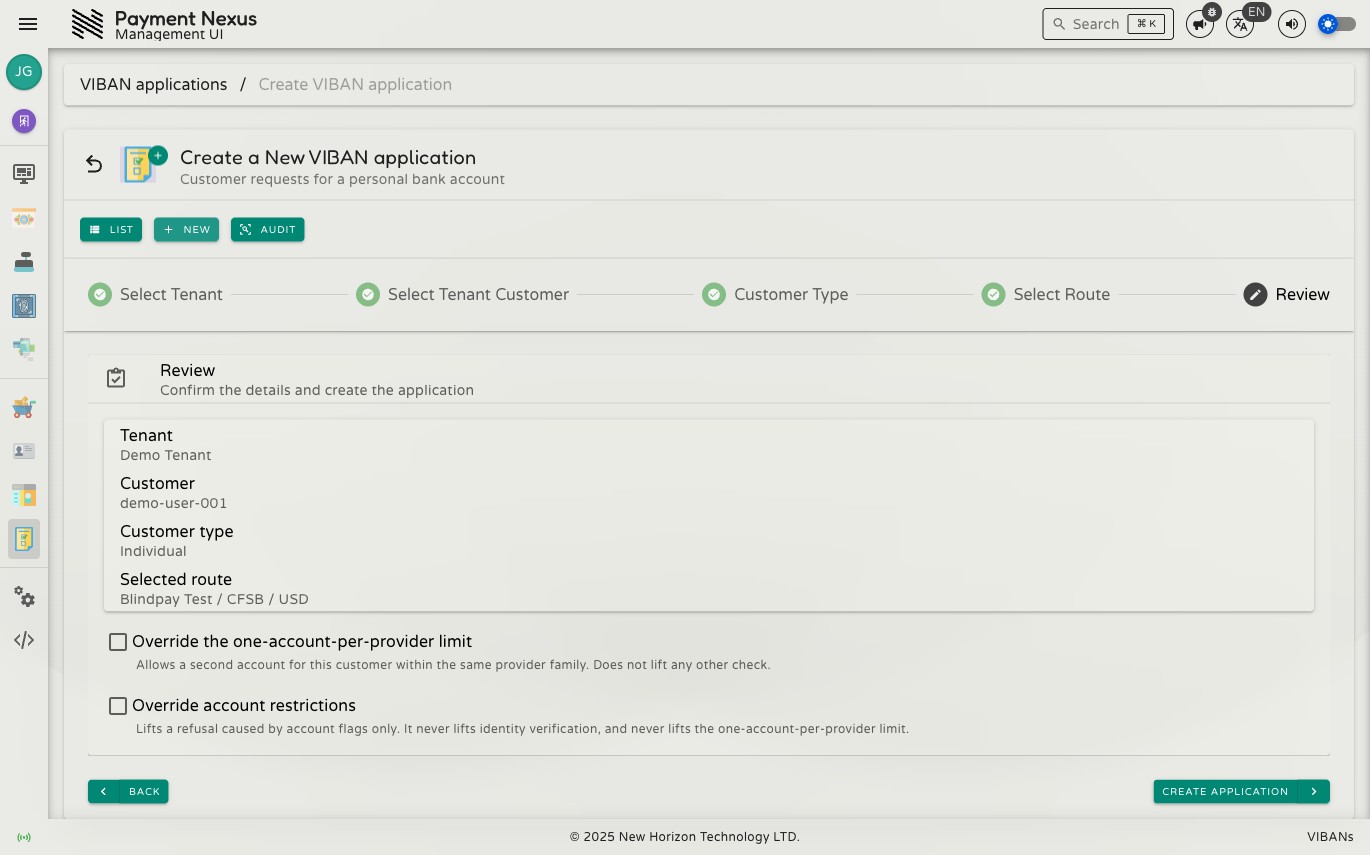
Step 5 — Review
Check the summary — tenant, customer, customer type, and selected route — then click Create application.
Two override checkboxes are available here. Each checkbox requires a separate permission and bypasses a specific restriction:
| Override | Lifts | Requires |
|---|---|---|
| Override the one-account-per-provider limit | The provider-cardinality conflict described above — one provider account (MID) per provider family per customer. Does not lift any other check. | viban_application:cardinality:override |
| Override account restrictions | A refusal caused by account flags only. Never lifts identity verification or the one-provider-account-per-family limit. | viban_application:eligibility:override |
Common reasons an application cannot proceed without one of these overrides:
| Reason | What it means |
|---|---|
| Route unavailable | The provider, bank, or currency route has been turned off — see VIBAN Availability |
| Provider-cardinality conflict | The customer already holds a VIBAN under a different account in the same provider family |
| Customer hasn't passed identity verification | KYC has not yet succeeded through a connected Identity Verification Provider |
| Tenant restrictions | The customer doesn't meet a restriction configured on this provider — see Restrictions |
| Already in progress | A non-terminal application already exists for this customer, provider, and currency |
Success
A confirmation dialog shows the new application ID with a direct link to its details page.