

Appearance
Skip to content
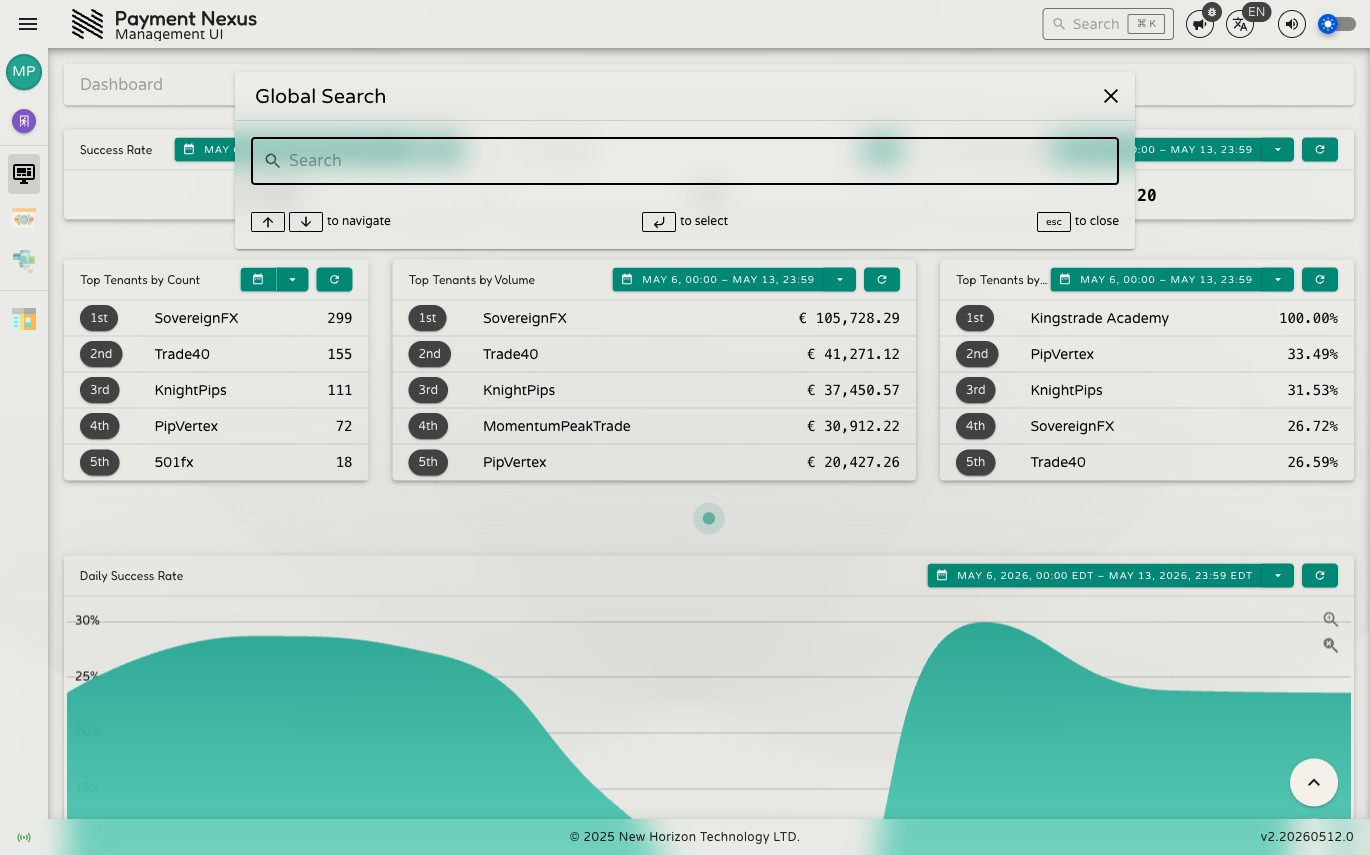
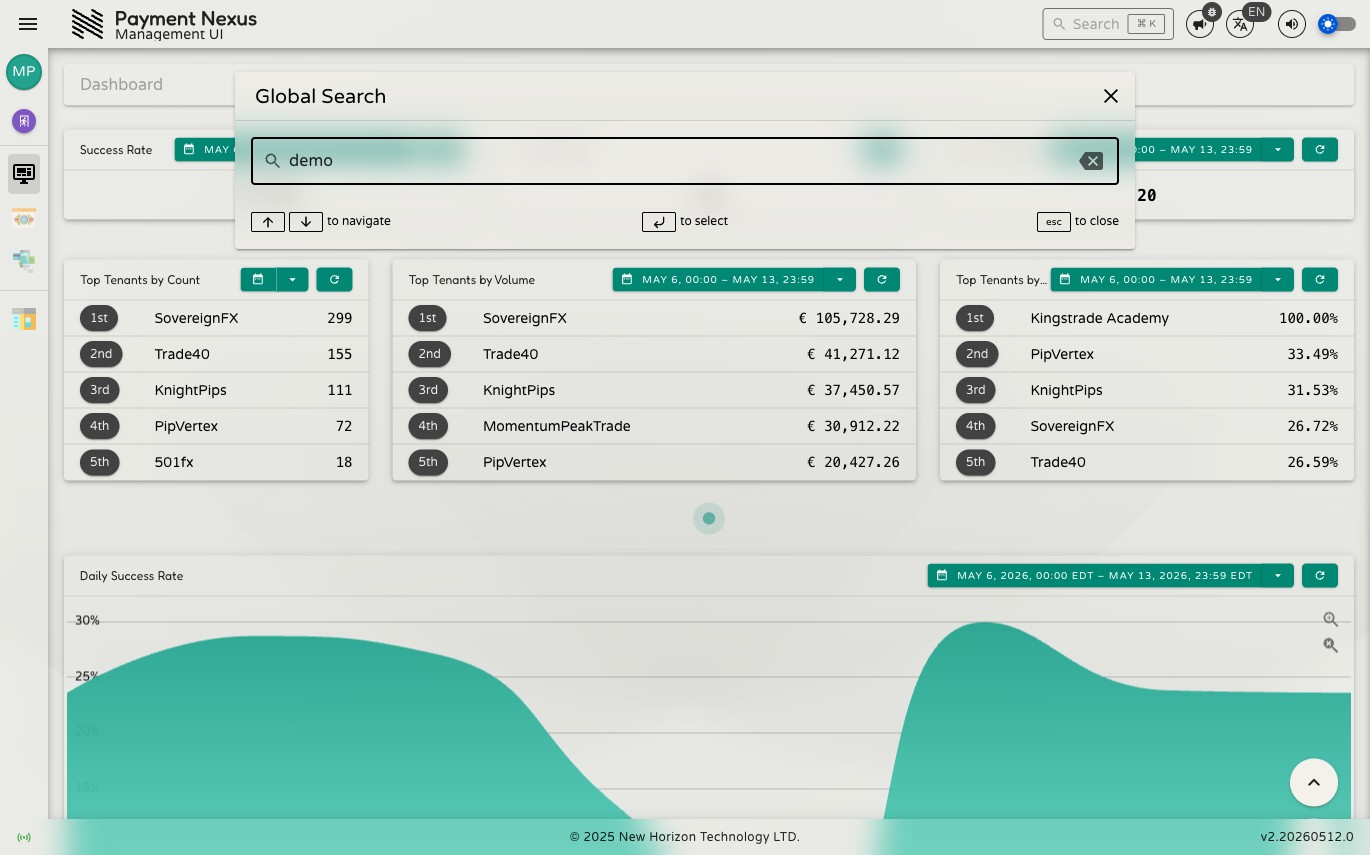

Global Search
Global Search gives you a fast, centralized way to find anything across the Payment Nexus Management UI. Start typing and results from all modules you have access to appear immediately — no need to navigate to a specific section first.
Opening Search
You can open the search interface in two ways:
- Search field: Click the search input in the top-right corner of the screen.
- Keyboard shortcut: Press Cmd + K (macOS) or Ctrl + K (Windows/Linux) from anywhere in the application.
Searching for Content
Once the search interface is open, start typing the phrase or keyword you are looking for. Results appear after a short pause while you type. Only results you have permission to view are shown.
Results stay visible until you select one or clear the search field — so you can take your time reviewing them without losing your place.
To close search without navigating anywhere, press Esc.
Using Search Results
Click a result to navigate to the relevant page.
To keep your current page open, open a result in a new tab:
- Windows/Linux: Ctrl + click (or right-click → Open in new tab)
- macOS: Cmd + click (or right-click → Open in new tab)
You can also navigate results with the keyboard:
- ↑ / ↓: Move between results
- Enter: Open the highlighted result
- Esc: Close the search dialog
What You See in Each Result
Each result row has three parts:
- Module icon: A quick visual hint of which area the result belongs to
- Result name and description: The matching term is highlighted to show why it appeared
- Module name (right-aligned): The module the result comes from
The highlight may match part of a word and can appear in either the name or the description.