

Appearance
Skip to content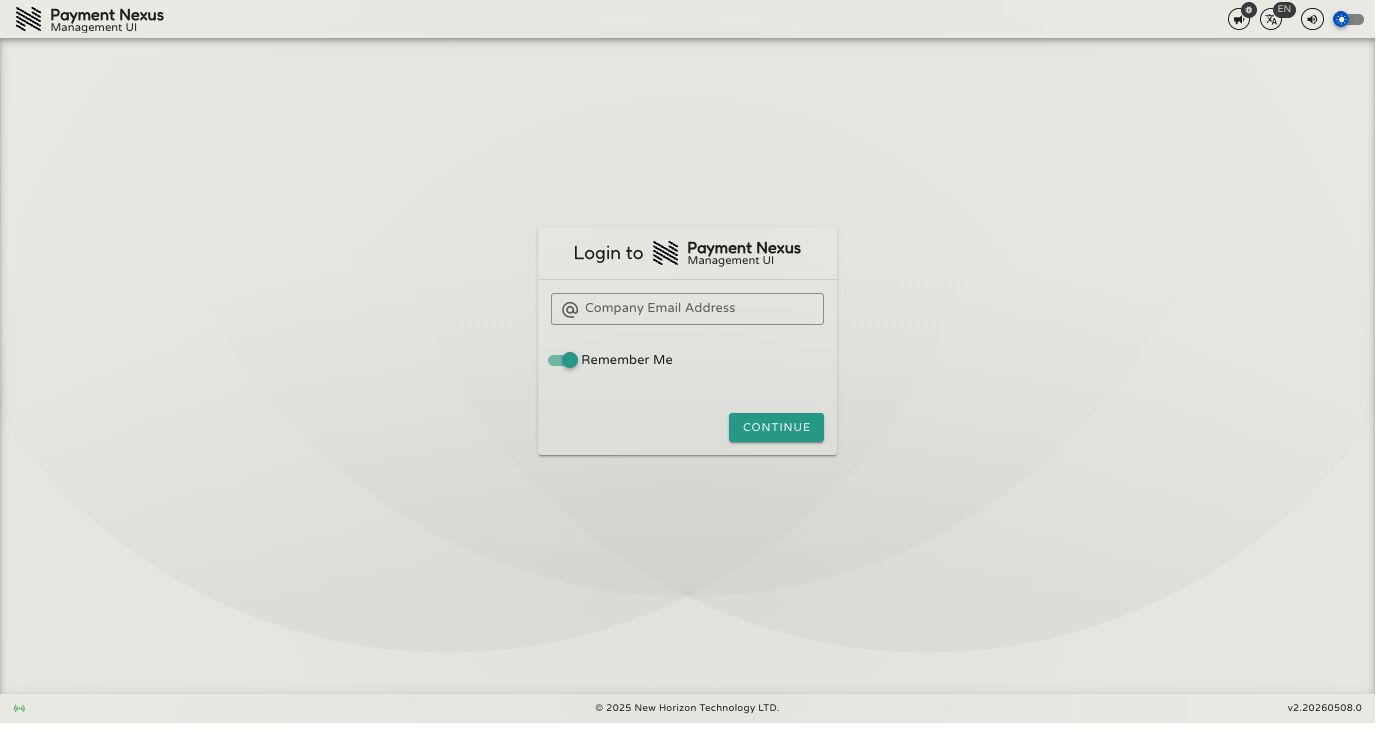
Access
The Payment Nexus management portal uses your organisation's existing identity infrastructure for login. Rather than managing a separate set of credentials, you sign in with the same account you use for everything else at your company.
How Authentication Works
Payment Nexus uses your company's Single Sign-On (SSO) provider. When you enter your email address, the system identifies the correct identity provider (IdP) for your organisation and routes you there automatically. This means you sign in with your standard corporate credentials.
Logging In
Follow these steps to log in:
- Navigate to the Portal: Open your web browser and go to the Payment Nexus management portal.
- Enter Your Email: In the login field, enter your full company email address and click Continue.
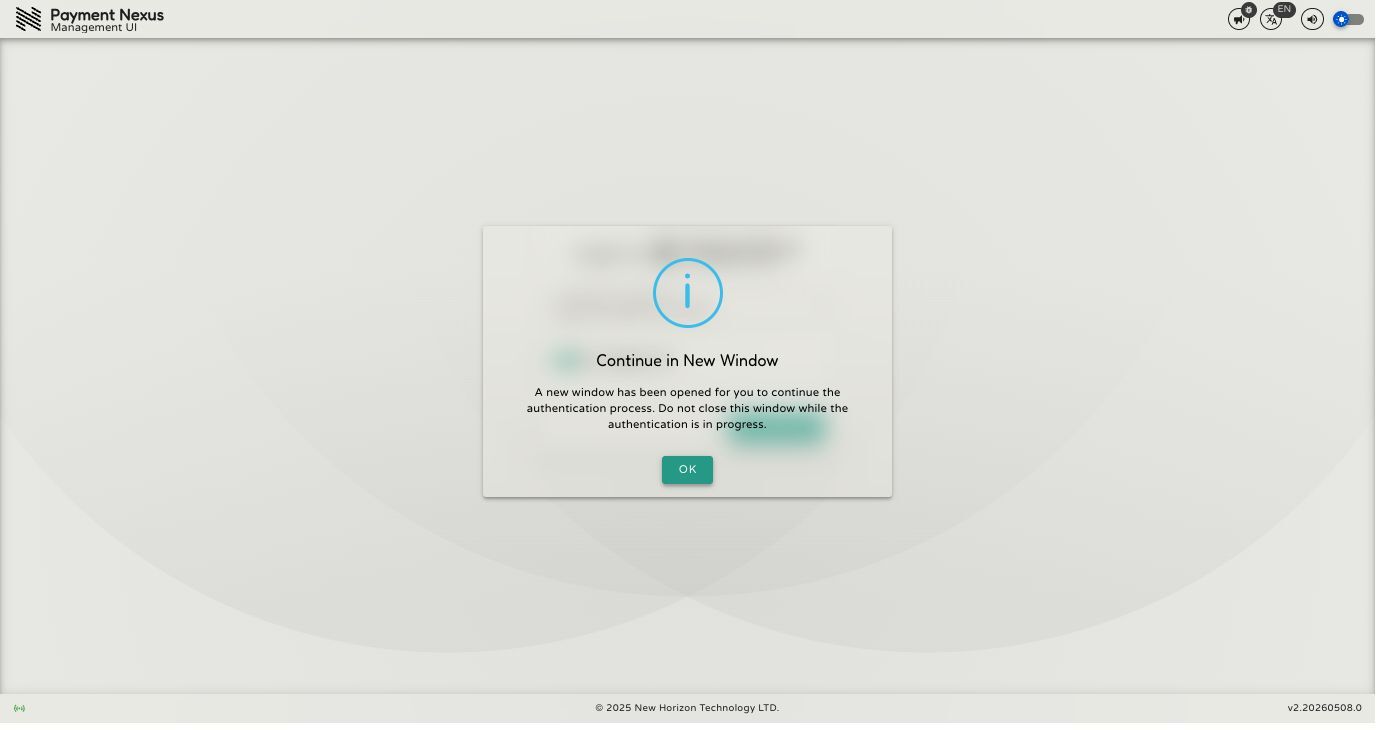
Complete the SSO Process: After clicking Continue, a new browser window will open to handle your organization's specific authentication process.
Important: While the new window is active, the main portal window will display a notification: "A new window has been opened for you to continue the authentication process. Do not close this window while the authentication is in progress." Please keep the original window open until the process is complete.
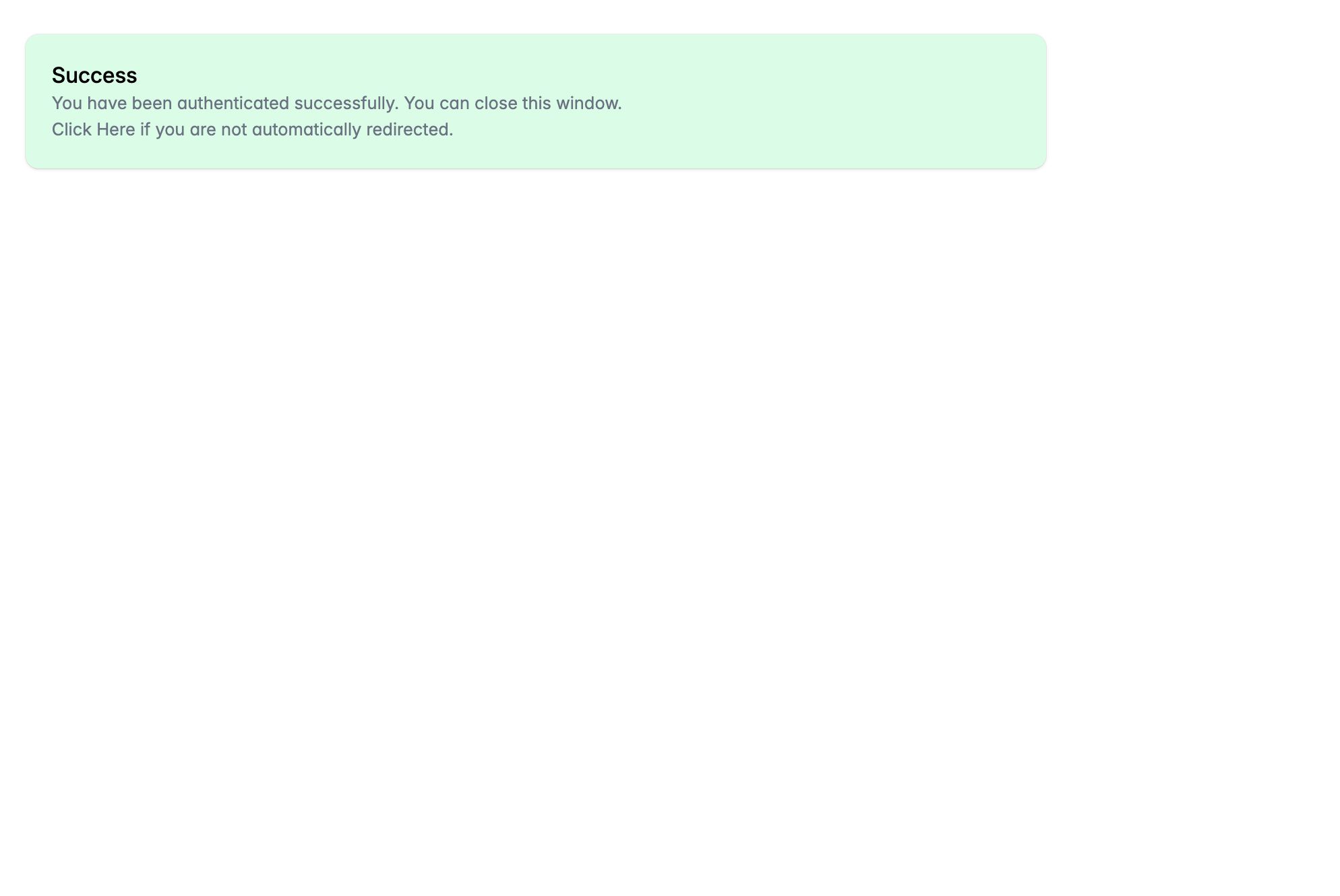
Enter the Dashboard: Once you have successfully authenticated in the pop-up window, you will be automatically logged in and redirected to your primary dashboard in the original browser window.
Note: The authentication window will remain open after the process is complete; you may close it manually.
Troubleshooting Access
If you encounter issues while logging in, consider the following:
- Incorrect Email Domain: Ensure you are using your official company email. The system relies on the domain (e.g.,
@company.com) to route you to the correct login provider. - SSO Issues: If you are redirected to your company's login page but cannot authenticate, please contact your internal IT help desk, as the issue likely resides with your corporate identity provider.
- MFA Requirements: If you encounter an error stating that you need to enable MFA (multi-factor authentication), please contact your IT department for assistance.
- Session Expiry: For security reasons, sessions will expire after a period of inactivity. If you are suddenly logged out, simply repeat the login process.