

Appearance
Skip to content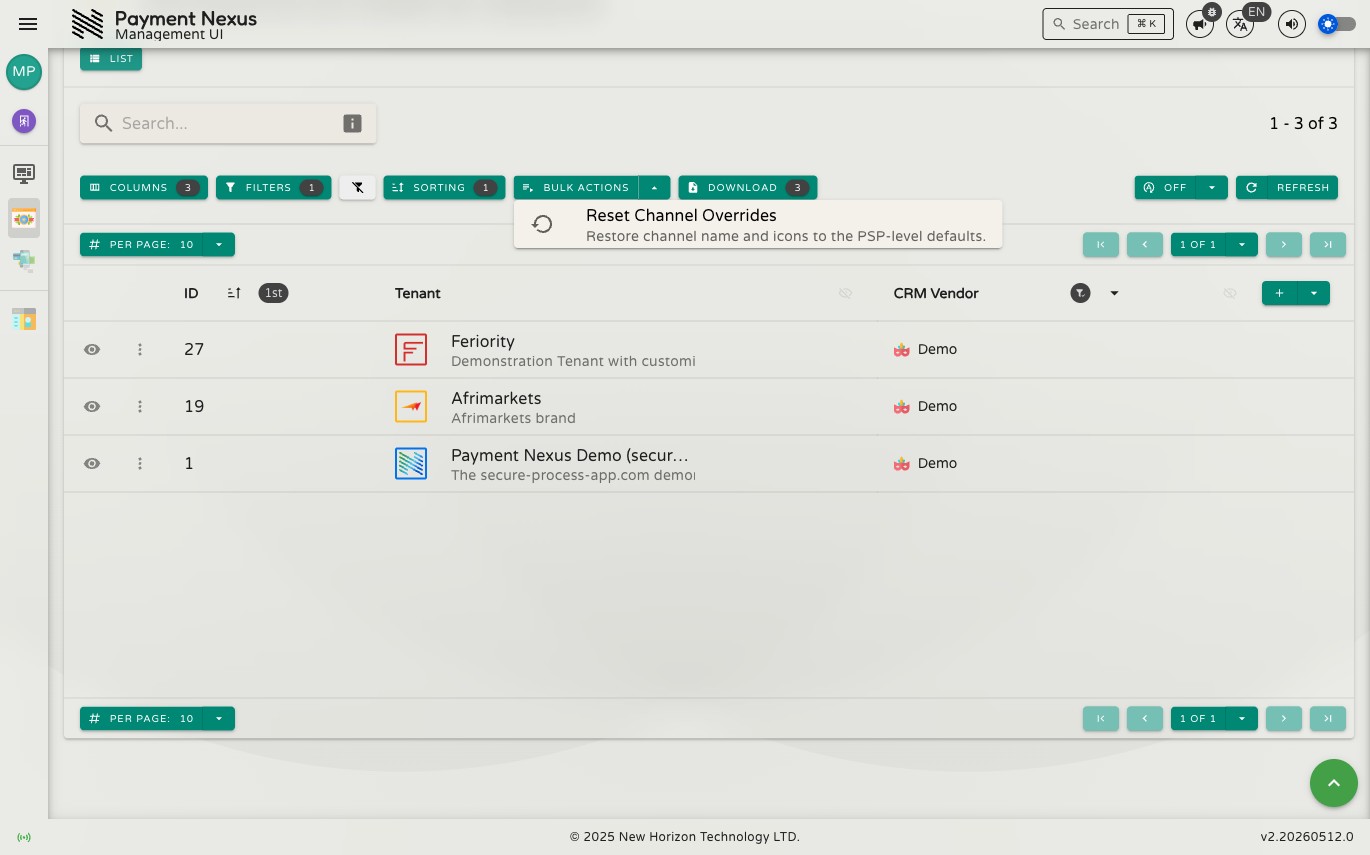
Bulk Actions
Bulk actions let you run an operation against multiple records at once — useful for processing a queue, updating a batch of tenants, or acting on a filtered result set without touching each record individually.
Selecting Records
Use the checkboxes on the left side of each row to select individual records. The checkbox in the column header selects or deselects all records on the current page.
Running a Bulk Action
Once records are selected, the Bulk Actions dropdown in the toolbar becomes active. Click it to see the available actions for this directory.
Scope Confirmation
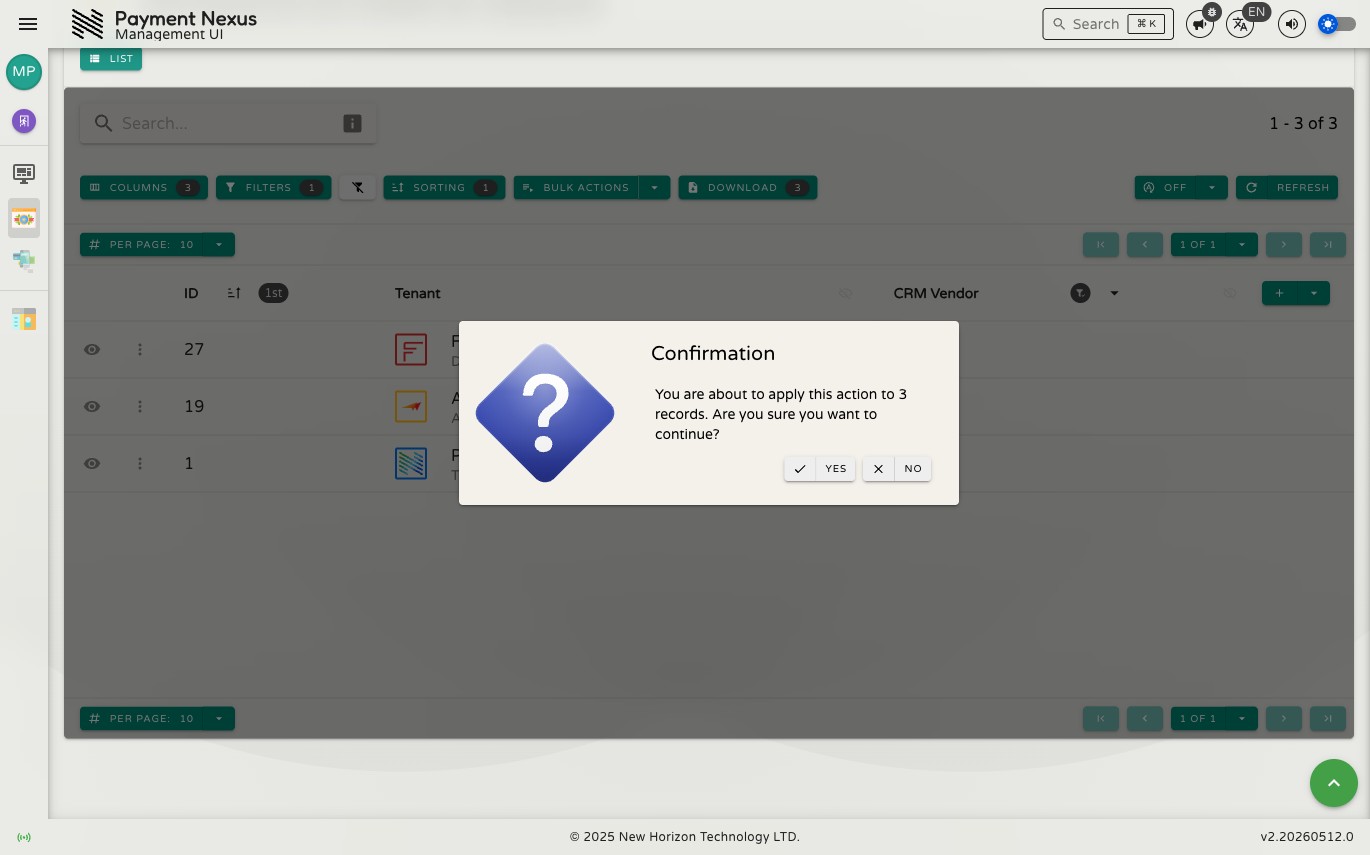
After choosing an action, a confirmation dialog appears before anything runs.
When the result set spans multiple pages, you'll also be asked whether to apply the action to:
- Selected records — only the records you checked
- All matching records — every record matching your current search and filters, across all pages
Using filters to narrow down your result set before running a bulk action is the recommended approach — it gives you a clear, auditable scope before anything runs.
Large Result Sets
If the number of matching records is very large, an additional warning appears before the action runs. Confirm to proceed or cancel to go back and refine your selection.
Progress
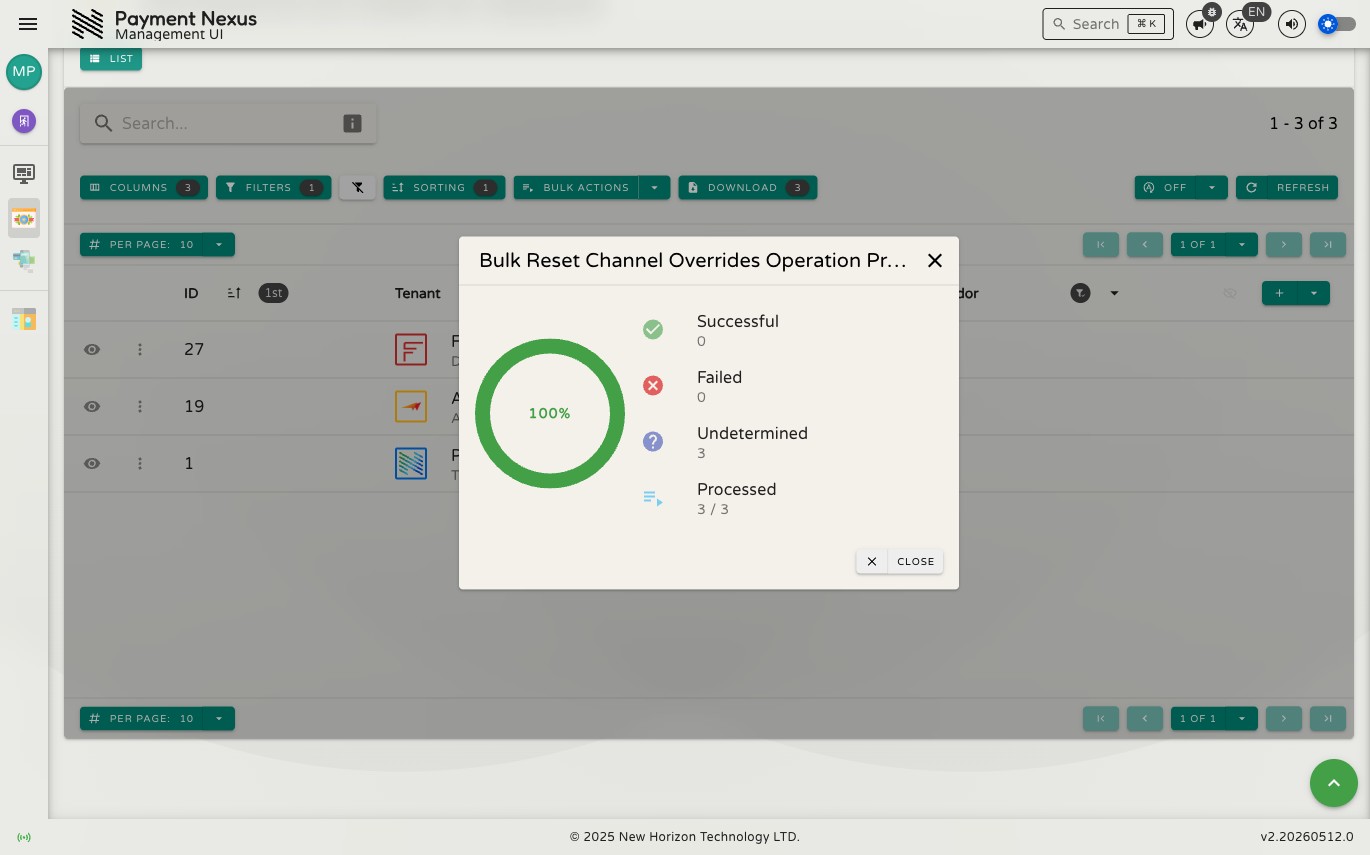
Bulk actions run in the background. A progress dialog shows how many records have been processed, a running success and failure count, and an Abort button to stop early if needed.
Processing continues even if individual records fail — the dialog reports the outcome for each.