

Appearance
Skip to content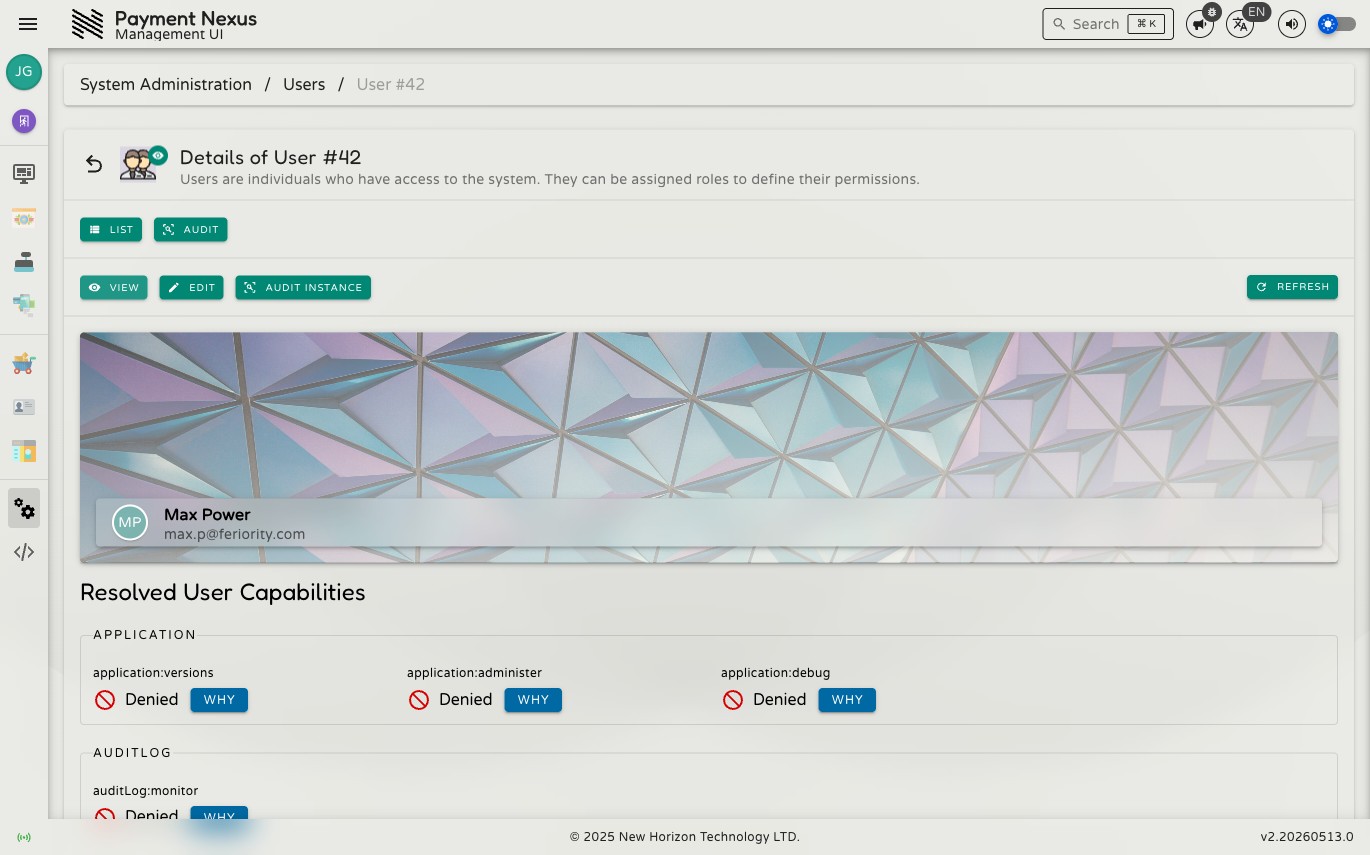
Viewing a User
The user detail page shows who the user is and what they can currently do in the system.
Profile header
The header shows the user's avatar, full name, and email address as sourced from the Identity Provider. These fields are read-only and cannot be changed through Payment Nexus.
Resolved User Capabilities
This section lists every capability in the system and whether the user currently holds it, derived from the combined effect of all their assigned roles. Capabilities are grouped by functional area (e.g. Application, Auditlog, Users).
Each row shows the capability name and one of two states:
| State | Meaning |
|---|---|
| Granted | At least one of the user's roles grants this capability and none deny it. The user can perform the action. |
| Denied | No role grants this capability, or a role explicitly denies it. The user cannot perform the action. |
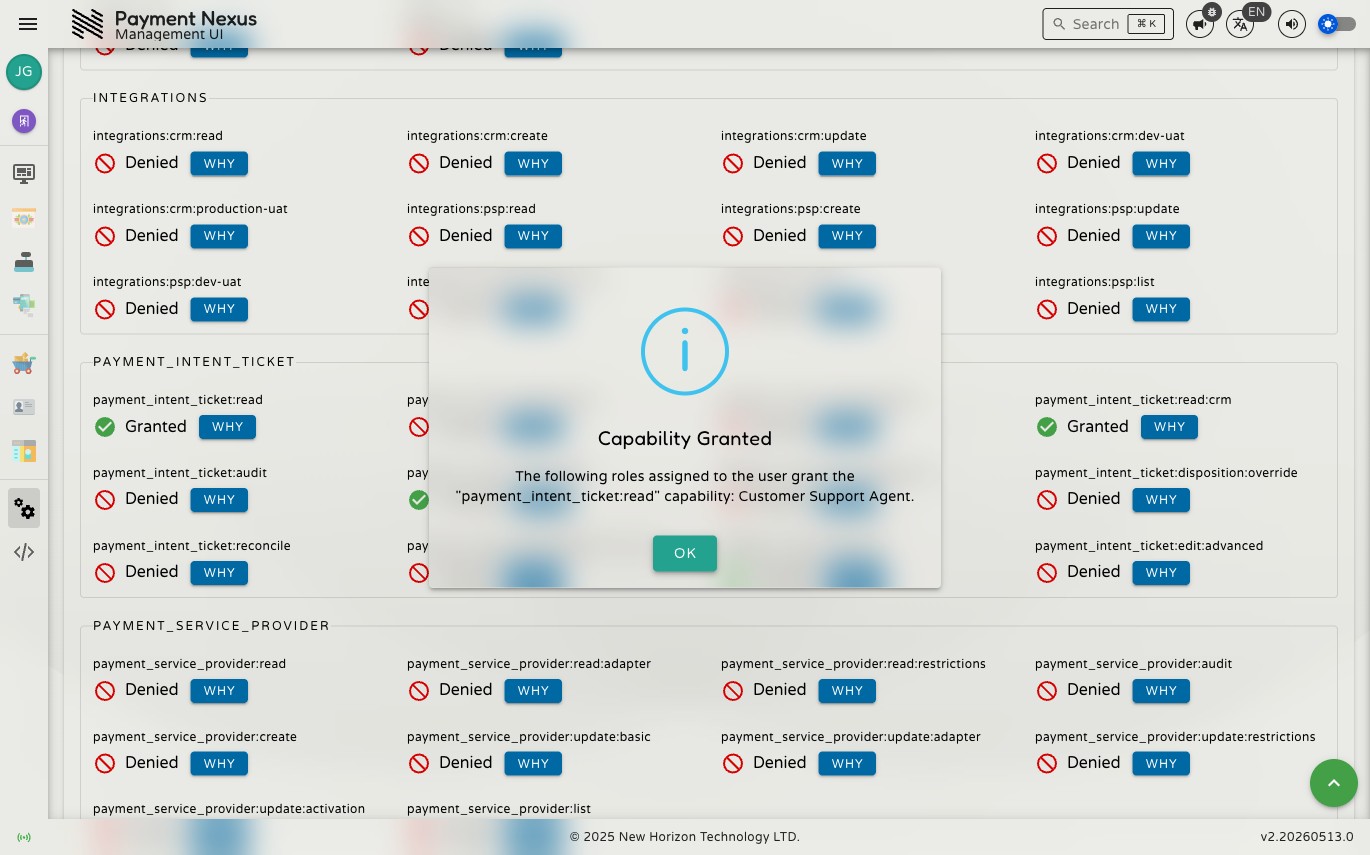
The WHY button
Every capability row has a WHY button. Clicking it opens a dialog that explains the resolved state in plain language:
- If Granted: the dialog lists exactly which of the user's roles are responsible for granting the capability (e.g. "The following roles assigned to the user grant the
payment_intent_ticket:readcapability: Customer Support Agent."). - If Denied: the dialog confirms that none of the user's current roles grant the capability.
This is primarily useful when troubleshooting access issues — for example, confirming that a user has the right capability before they report a problem, or identifying which role to check when a capability is unexpectedly present or absent.
Navigation
From the view page you can:
- Edit — open the edit page to change the Super Admin flag or manage role assignments
- Audit Instance — view the change history for this user record
- List — return to the Users directory