

Appearance
Skip to content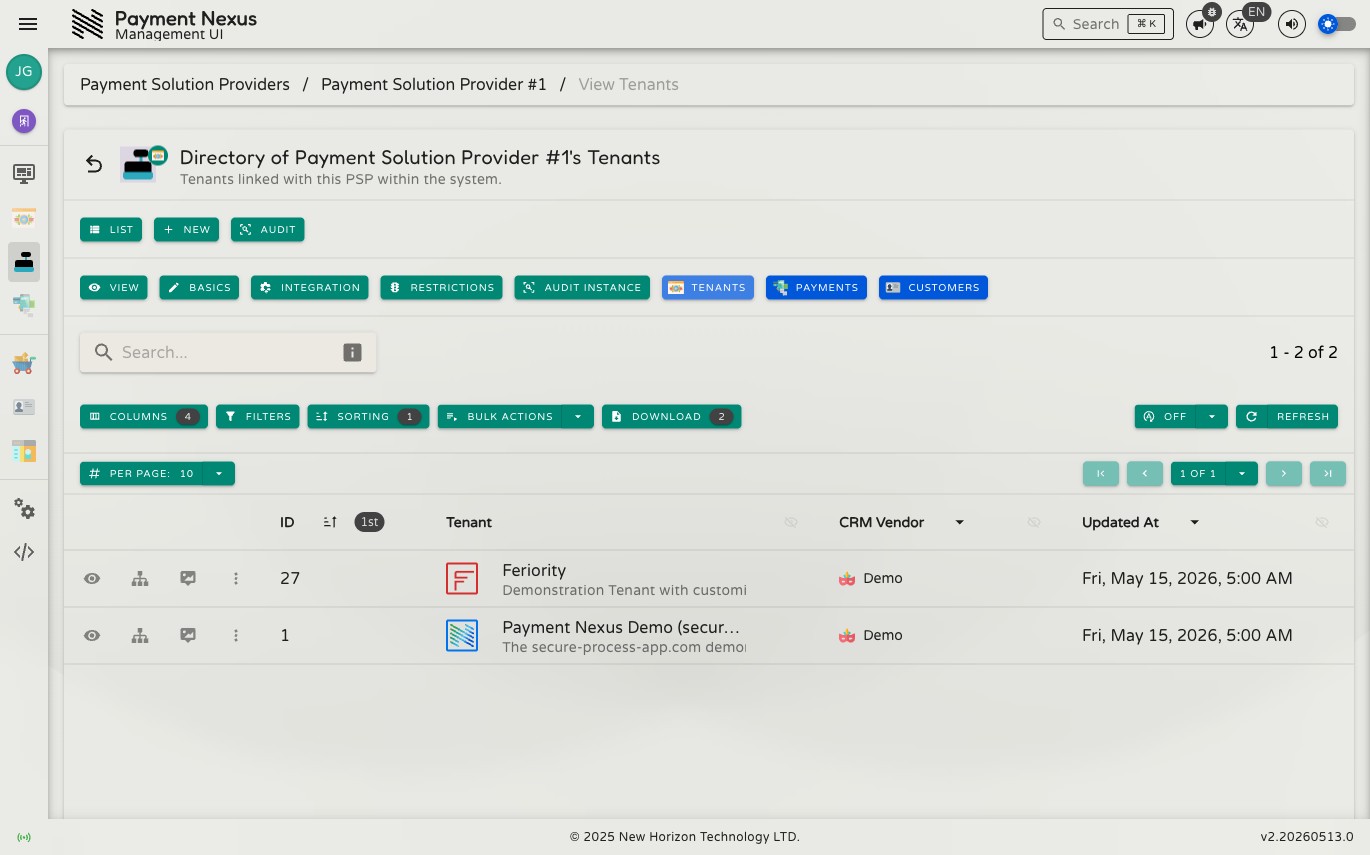
Linked Tenants
The Linked Tenants page lists every brand that has been assigned this PSP. Removing a brand from this list unlinks the PSP from that brand, which disables all payment channels sourced from this PSP for that brand's customers.
A PSP can also be linked to or unlinked from a brand on the brand's own Payment Channels page, which provides per-channel control rather than linking or unlinking the entire PSP at once.
Permissions
| Action | Permission required |
|---|---|
| View linked tenants | tenant:read |
| Unlink a tenant | tenant:update:channels |
| Link or disconnect VIBAN issuance | viban_availability:manage |
Directory columns
| Column | Description |
|---|---|
| ID | The internal Payment Nexus identifier for the brand |
| Tenant | The brand name |
| CRM Vendor | The CRM integration vendor connected to this brand |
| Updated At | When the brand record was last modified |
Row actions
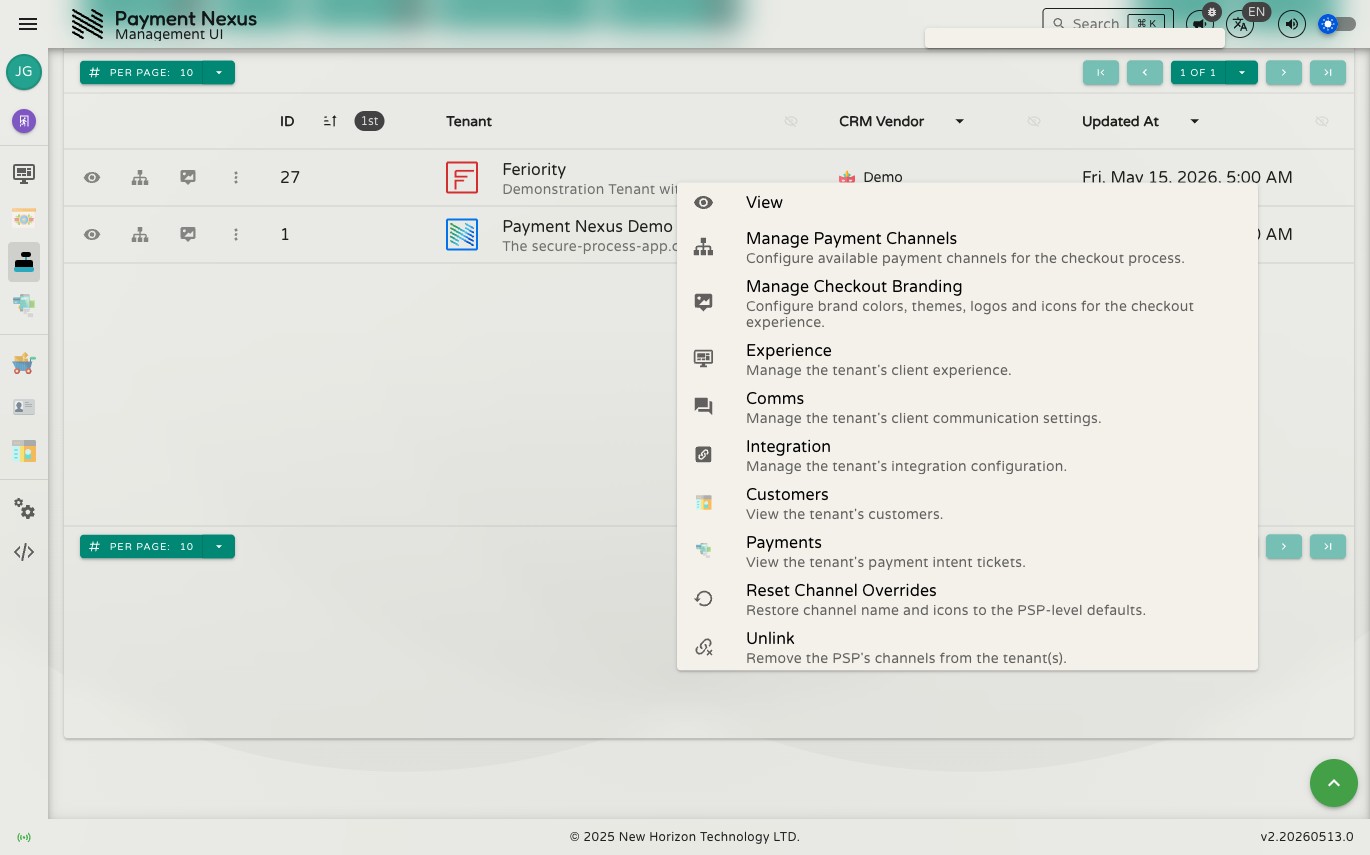
Click the ⋯ icon on any row to open its action menu.
| Action | Description |
|---|---|
| View | Open the brand detail page |
| Manage Payment Channels | Go directly to the brand's Payment Channels page to configure available checkout methods |
| Manage Checkout Branding | Go directly to the brand's Branding page to configure colors, themes, and logos |
| Experience | Go to the brand's client experience settings |
| Comms | Go to the brand's client communication settings |
| Integration | Go to the brand's integration configuration |
| Customers | View the brand's tenant customers |
| Payments | View the brand's payment intent tickets |
| Reset Channel Overrides | Restore channel names and icons for this brand to the PSP-level defaults |
| Disconnect Virtual Accounts | Stop this brand from issuing VIBANs through this provider account — distinct from Unlink, which removes checkout channels instead |
| Unlink | Remove this PSP from the brand, disabling all its payment channels for that brand |
Two separate connections
A provider account can serve a brand two independent ways: as a checkout channel (unlinked via Unlink) and as a VIBAN issuer (unlinked via Disconnect Virtual Accounts). A provider account doing both jobs for a brand shows a note to that effect before you disconnect either one, since removing one doesn't touch the other.
Bulk actions
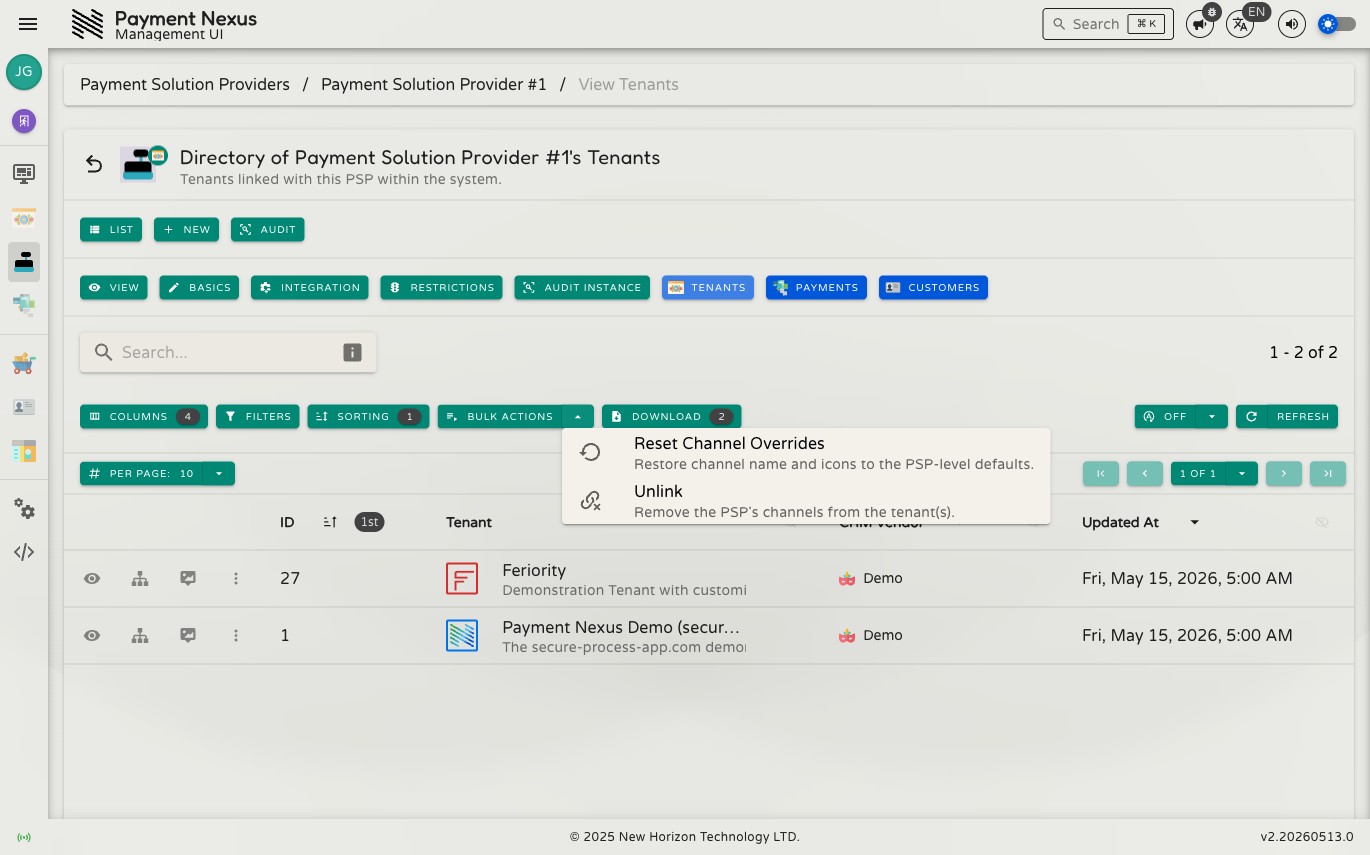
Click the chevron next to Bulk Actions to open the bulk action menu. Bulk actions apply to all records matching the current search and filters.
| Action | Description |
|---|---|
| Reset Channel Overrides | Restore channel names and icons to the PSP-level defaults for all matching brands |
| Unlink | Remove this PSP from all matching brands at once |
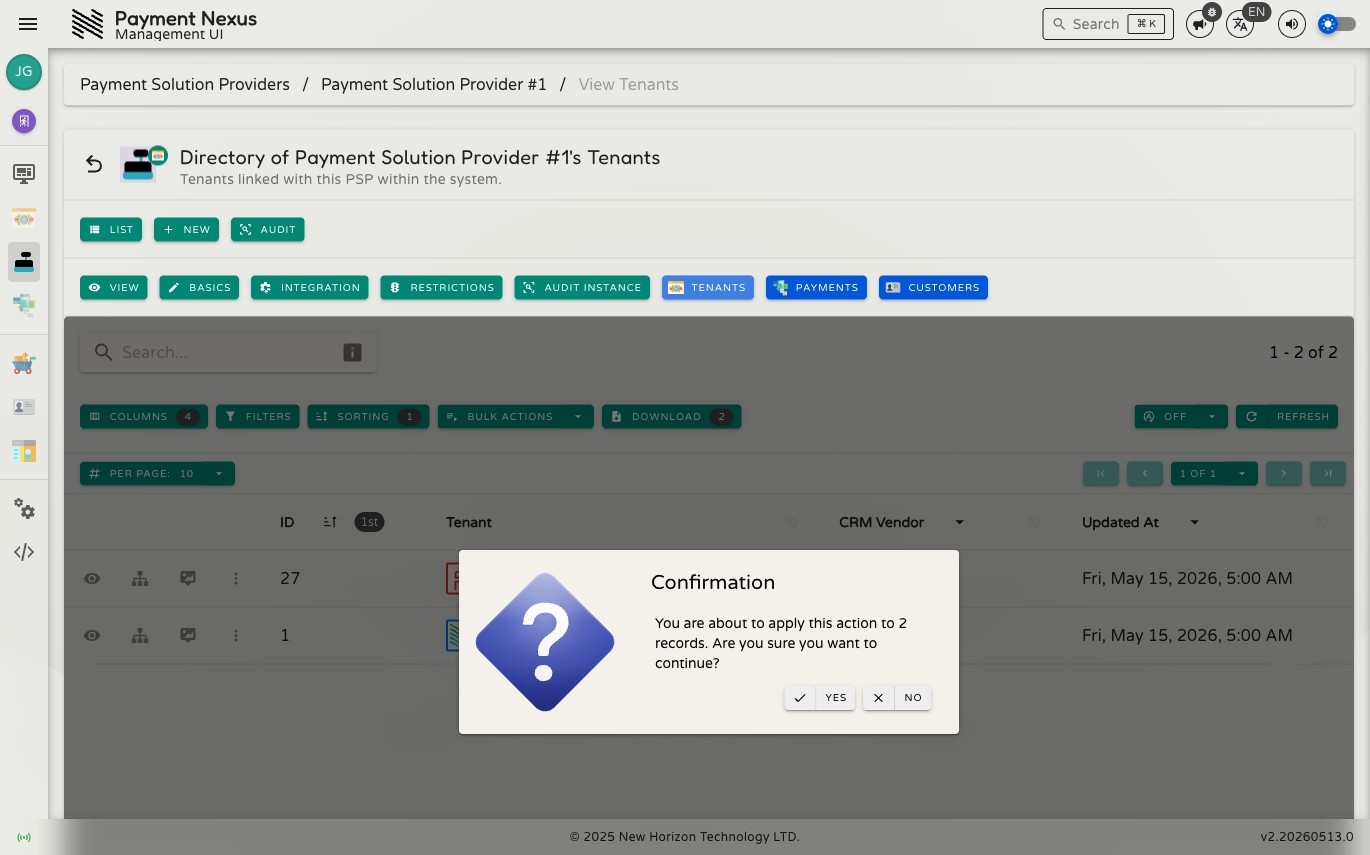
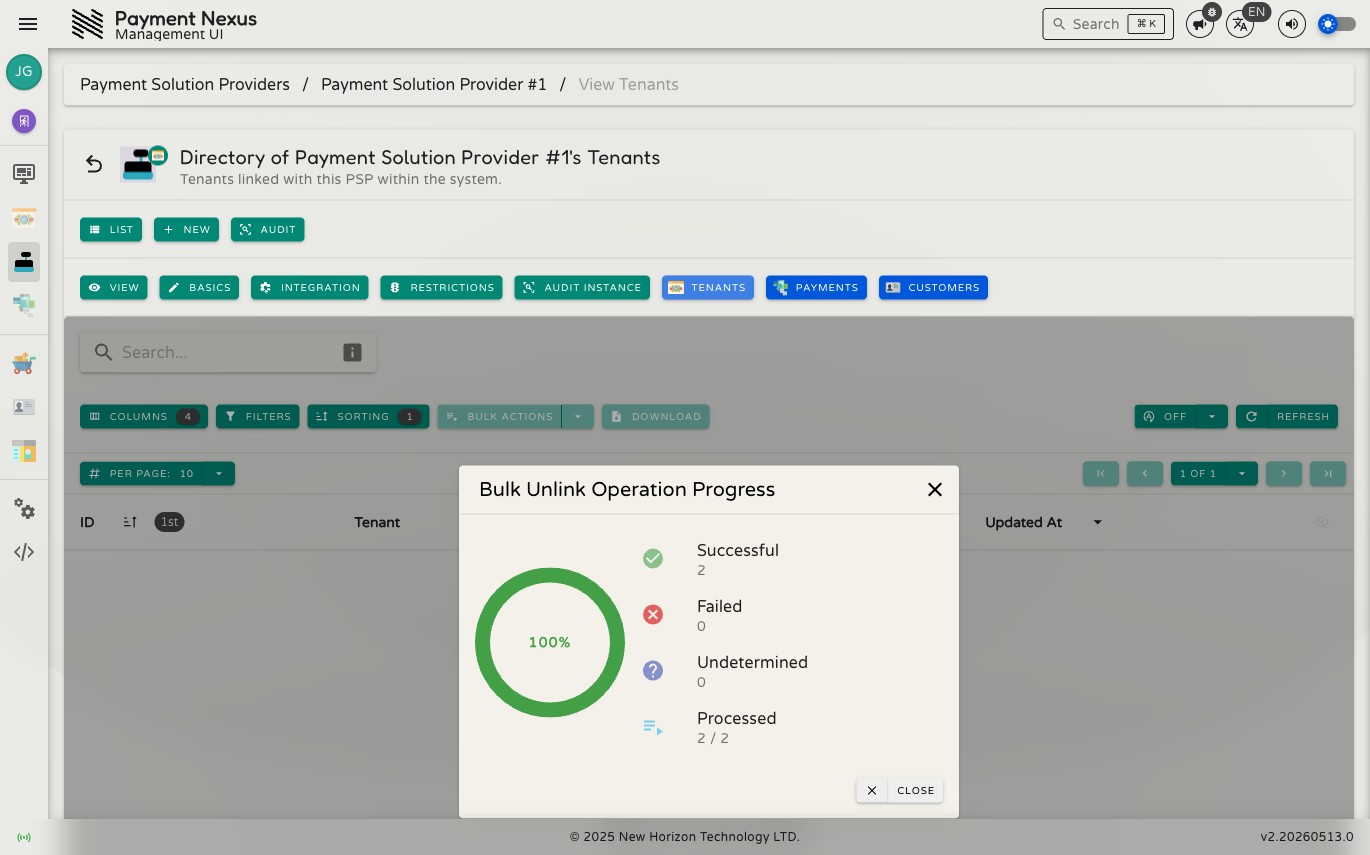
Bulk Unlink
Selecting Unlink from the bulk actions menu opens a confirmation dialog showing how many records will be affected. Click Yes to proceed.
The result is reported per brand — each brand shows as successfully unlinked, failed, or undetermined.
Adding a linked tenant
Click Add to open the Link to Tenants dialog, which lets you assign this PSP to one or more brands in a single operation.
Click Refresh to reload the list from the backend.
Link VIBAN to Tenants
Separately from checkout-channel linking, Link VIBAN to Tenants grants brands the right to issue VIBANs through this provider account. It's a distinct connection from the one above — a brand can be linked for checkout, for VIBAN issuance, both, or neither. The picker shows which brands already have VIBAN issuance enabled and lets you add more; a brand that already issues VIBANs through every eligible provider account shows a message saying so rather than an empty list.