

Appearance
Skip to content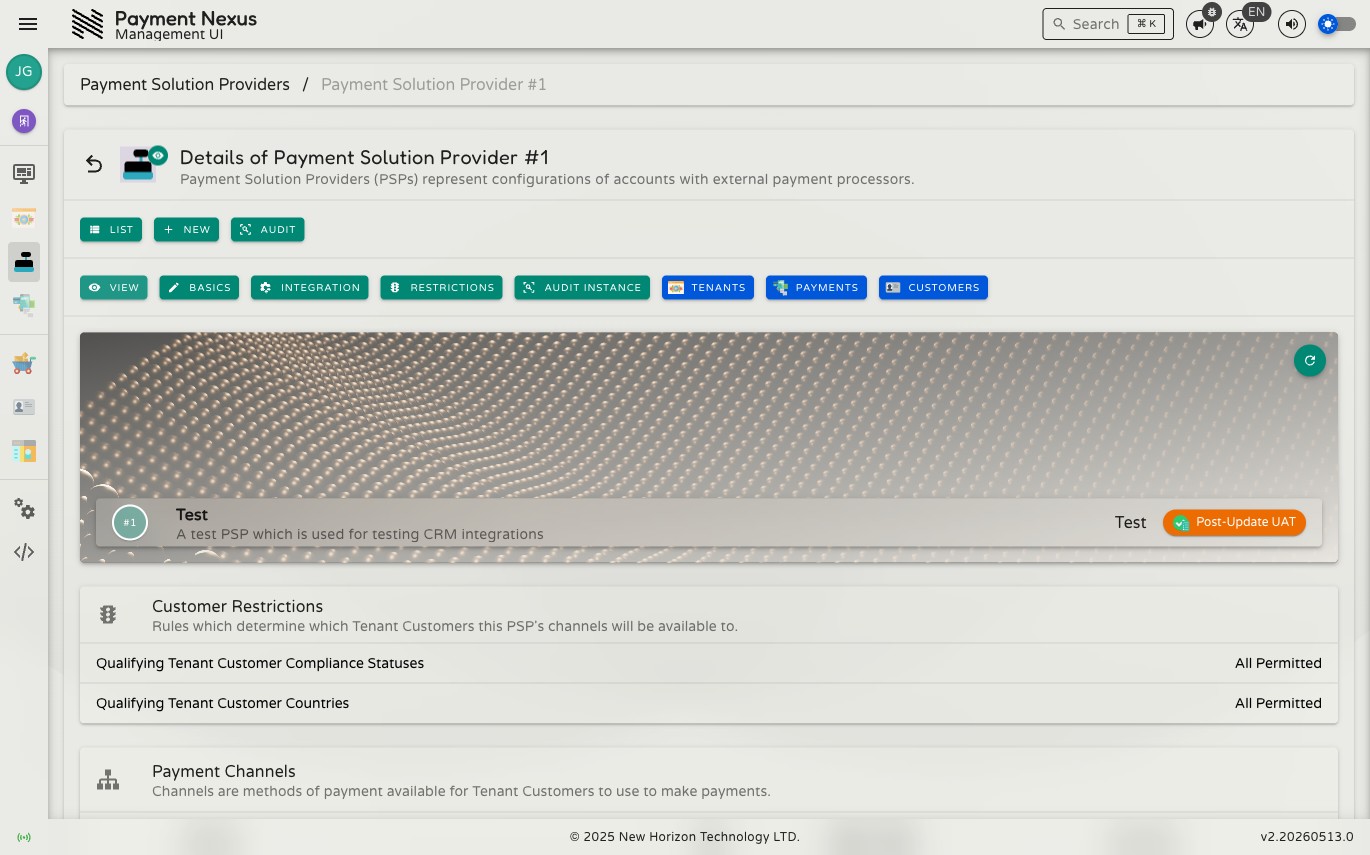
Viewing a Payment Solution Provider
The PSP view page shows a read-only summary of a single payment processor account: its identity, the customer restriction rules currently in effect, the payment channels it provides, and the webhook URLs to configure in the payment processor's dashboard.
Permissions
| Action | Permission required |
|---|---|
| View a PSP | psp:read |
Profile cover
The cover at the top shows the PSP's numeric ID, display name, description, and the release state badge of the integration vendor currently configured for it.
Customer Restrictions
The Customer Restrictions table shows the rules that determine which tenant customers can use this PSP's channels. There are two rules:
| Row | Description |
|---|---|
| Qualifying Tenant Customer Compliance Statuses | The compliance statuses a customer must have to use this PSP. Displays All Permitted when no statuses are configured. |
| Qualifying Tenant Customer Countries | The countries a customer must be from to use this PSP. Displays All Permitted when no countries are configured. |
When either row shows All Permitted, there is no restriction on that dimension — any customer can use this PSP regardless of their compliance status or country. Restrictions can be configured on the Restrictions edit page.
Payment Channels
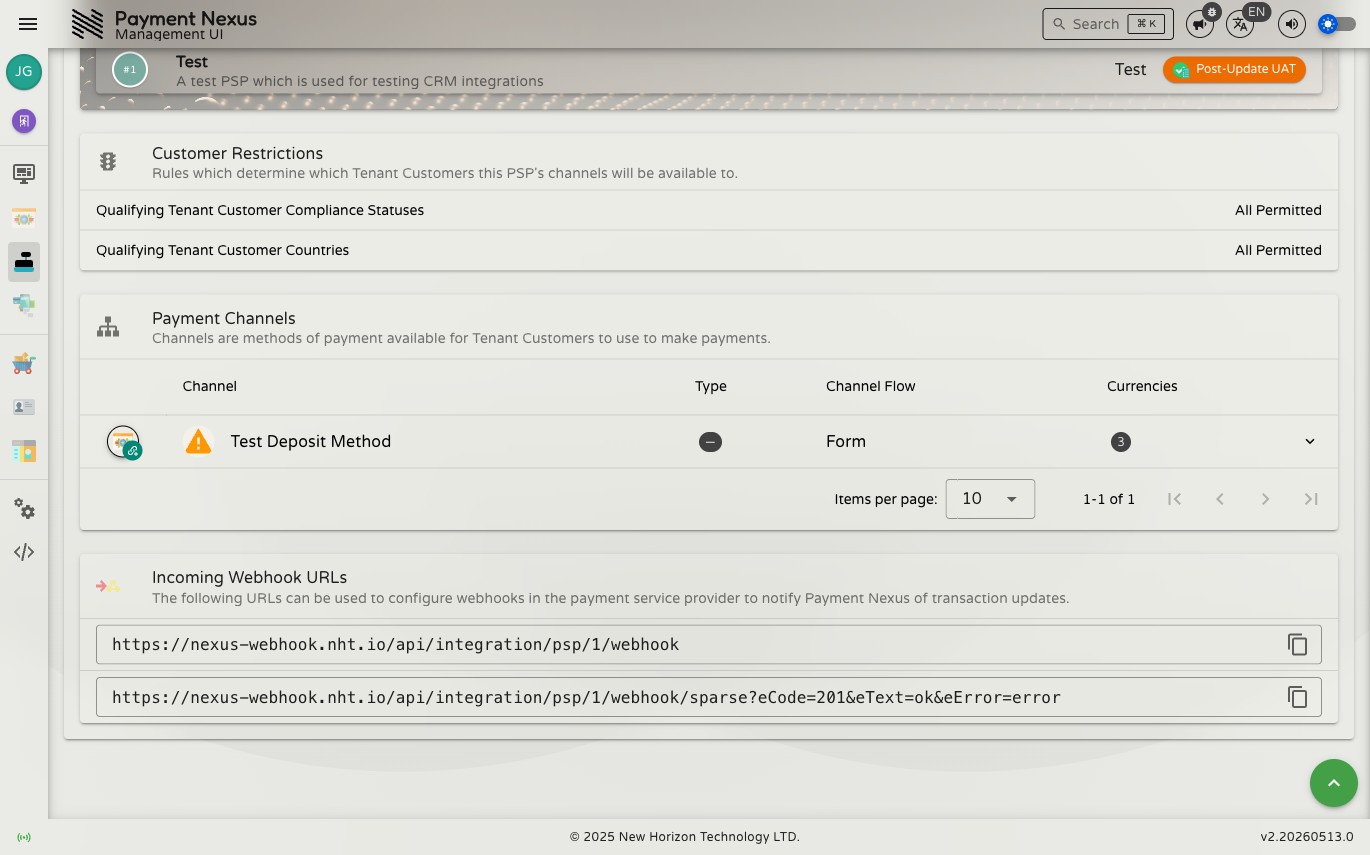
The Payment Channels table lists every payment method this PSP provides. Each row shows:
| Column | Description |
|---|---|
| Channel | The channel name as defined by this PSP |
| Type | The payment method category (e.g. Deposit Method, Credit Card) |
| Channel Flow | The user interface flow used during checkout (e.g. Form, Redirect) |
| Currencies | The number of currencies configured for this channel |
Expanded channel row
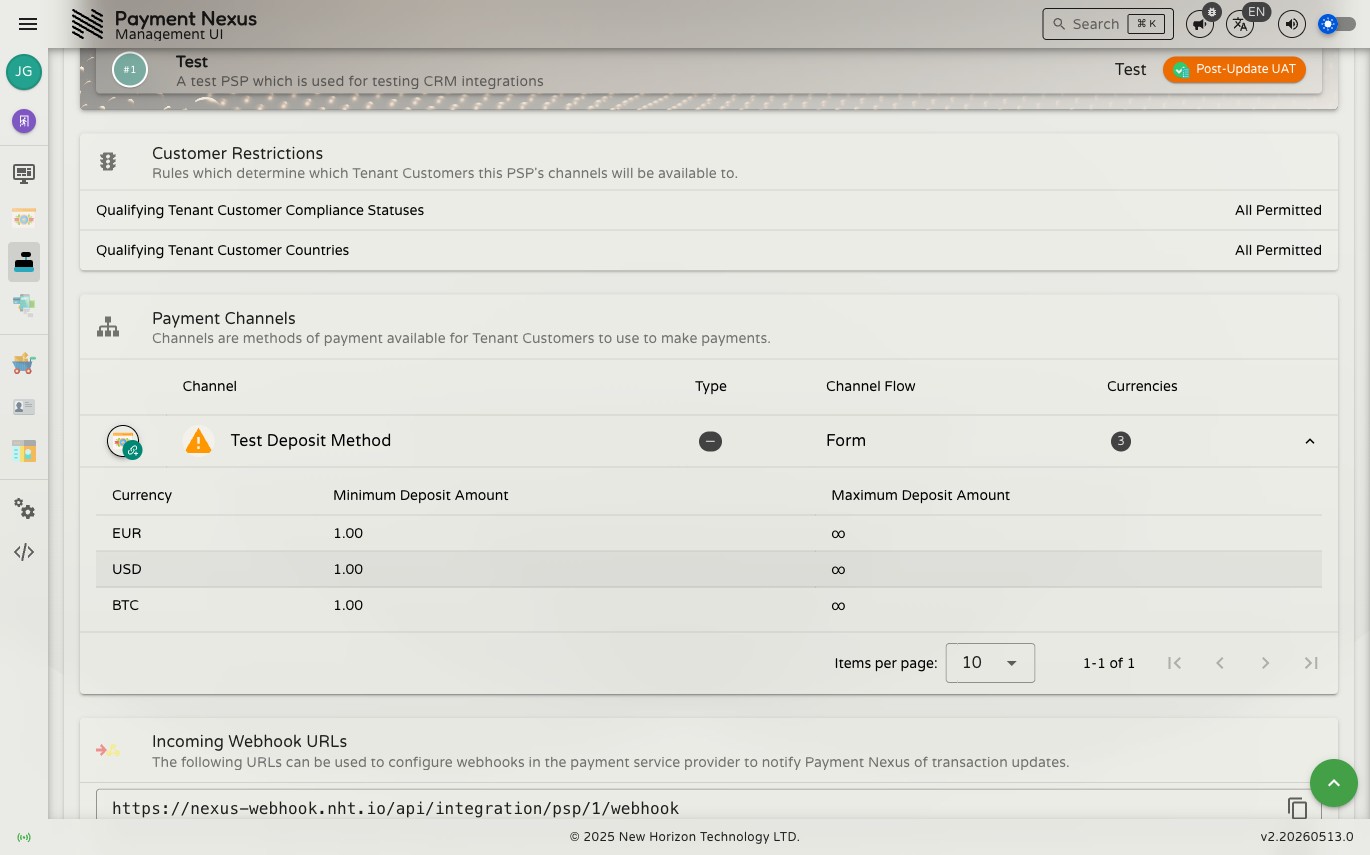
Click the expand button on any row to see the per-currency limits configured for that channel:
| Column | Description |
|---|---|
| Currency | The currency code |
| Min | Minimum deposit amount in that currency, or — if no minimum is set |
| Max | Maximum deposit amount in that currency, or — if no maximum is set |
Link to Tenants
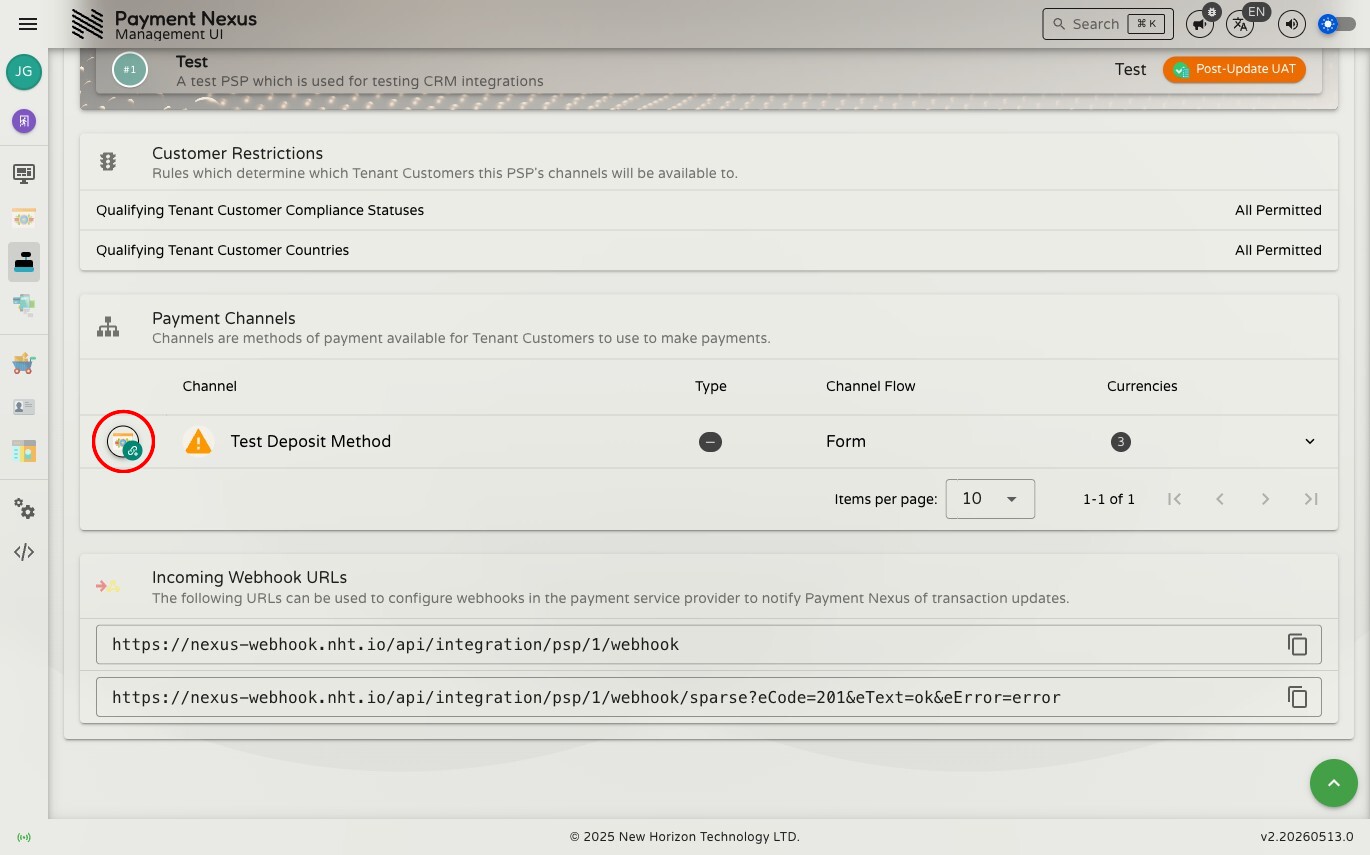
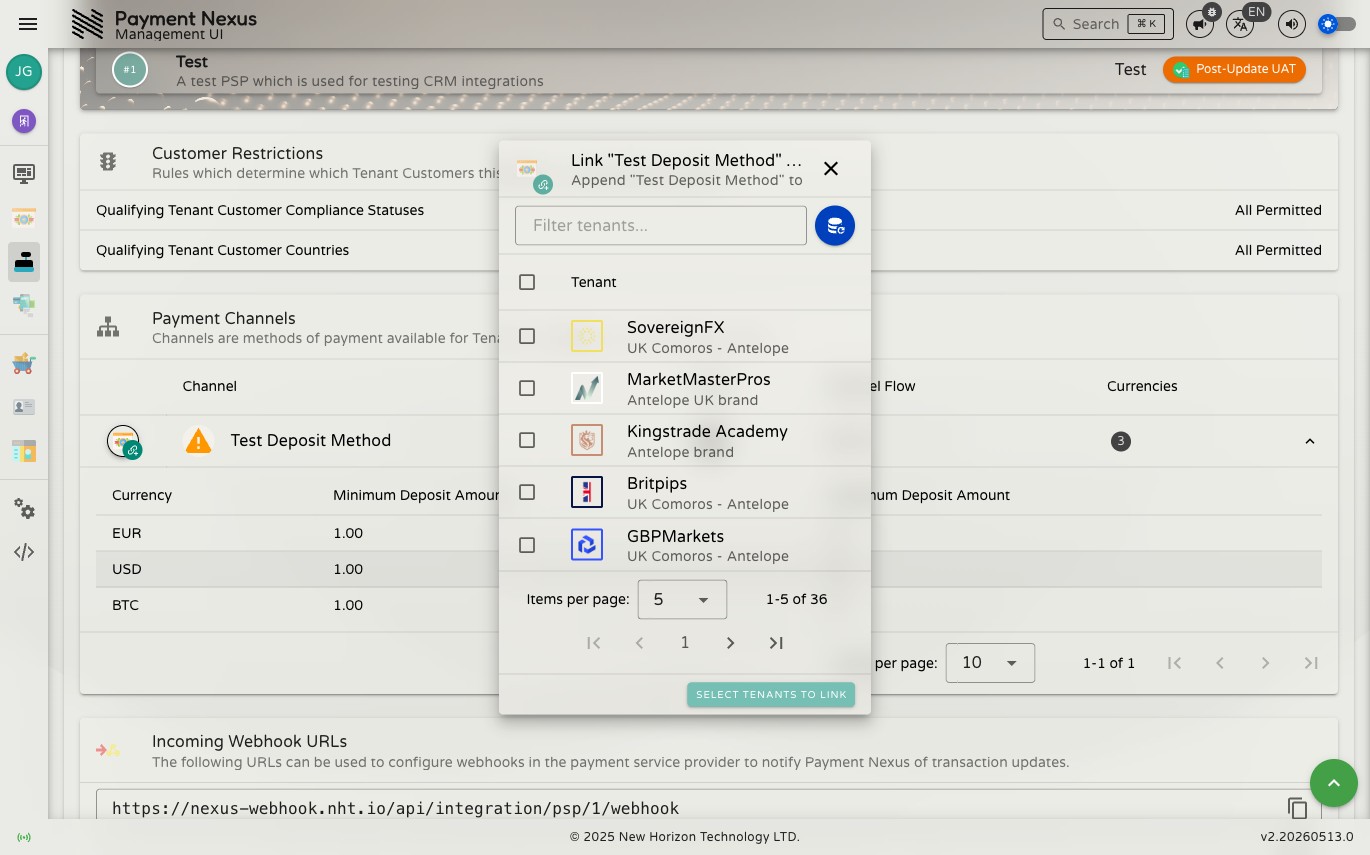
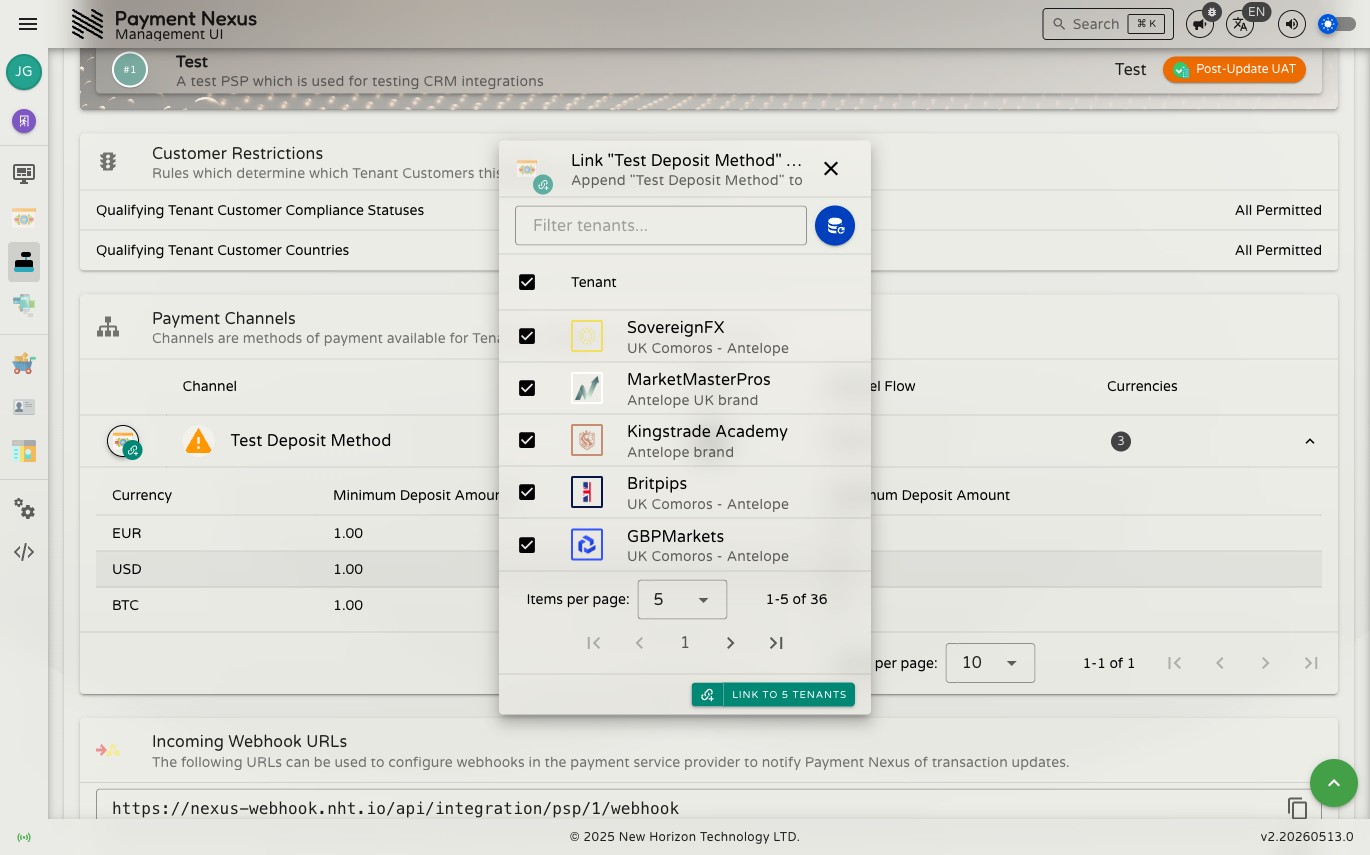
The Link to Tenants button on an expanded row opens a dialog that lets you assign this channel to multiple brands at once. This is the fastest way to roll out a new channel across many brands — rather than visiting each brand's Channels page individually, you select all the relevant brands here and confirm in one step.
The dialog lists every brand in the system, paginated. Select the brands you want to add this channel to by ticking their checkboxes. The confirm button updates to show how many brands are selected (e.g. Link to 5 Tenants).
INFO
The channel is appended to the end of each brand's channel list. To change its position within a category, go to the brand's Payment Channels page and reorder it there.
Incoming Webhook URLs
The Incoming Webhook URLs section lists the URLs you give to the payment processor so it can notify Payment Nexus of transaction outcomes. Each URL has a copy button.
There are two URL types:
Base URL
text
https://<host>/api/integration/psp/<id>/webhookThe standard endpoint. Accepts any HTTP method and any Content-Type. When the notification is received and successfully queued for processing, Payment Nexus returns HTTP 201. If the queue is unavailable it returns HTTP 503. The response body format depends on the Accept header the PSP sends:
Accept header | Success body | Failure body |
|---|---|---|
application/json (default) | {"accepted": true} | {"accepted": false} |
application/x-yaml | accepted: true | accepted: false |
application/xml | <response accepted="true"/> | <response accepted="false"/> |
text/plain | Accepted | Not Accepted |
Processing is asynchronous — Payment Nexus acknowledges the notification immediately and processes it in the background. A 201 response means the notification was queued, not that the underlying payment has been updated yet.
Sparse URL
text
https://<host>/api/integration/psp/<id>/webhook/sparse?eCode=201&eText=ok&eError=errorUse this URL for PSPs that require plain-text responses rather than structured bodies. The response is always text/plain. Three query parameters let you control exactly what the PSP receives:
| Parameter | Default | Description |
|---|---|---|
eCode | 201 | HTTP status code returned on success. Must be a 2xx value; any value outside 200–299 falls back to 201. |
eText | ok | Response body text returned on success. |
eError | error | Response body text returned on failure (HTTP 503). |
The sparse URL shown on this page already includes the default parameters — copy it as-is or adjust the values before entering it in the PSP's dashboard.
Priority
For either URL type, the PSP can include an X-Priority header (integer 1–255, default 1) to influence queue processing priority for that notification.