

Appearance
Skip to content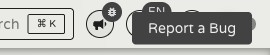
Help & Support
Use this page to identify the right team to contact when something needs attention.
Who to contact
User management or access issues
Contact IT.
This includes problems with logging in, missing permissions, role assignments, or user account management.
Payment processing issues
Contact the Payments Team.
This includes problems with transactions, PSP connections, payment failures, settlement discrepancies, or anything related to the flow of money.
Reporting or statistics issues
Contact the BI Team.
This includes incorrect figures, missing data in reports, or unexpected results in dashboards and exports.
Unexpected application behaviour
Use the Report a Bug button in the top-right corner of the screen and fill out the form.
This is the right path for anything that looks like the application is not working as intended — error messages, broken UI, incorrect data displayed, or behaviour that does not match what is documented here.
Clicking the button opens the Give Feedback panel:
Reporting issues effectively
Regardless of who you are contacting, the most useful reports follow the same structure. The goal is to give the recipient enough information to understand and reproduce the problem without needing to ask follow-up questions.
- What you were doing — which page you were on and what action you took (e.g. I opened the Users directory and clicked Export).
- What you expected to happen — the outcome you anticipated (e.g. I expected a CSV file to download).
- What actually happened — the exact behaviour you observed (e.g. The page showed a red error banner and nothing downloaded).
Include any relevant identifiers — tenant names, transaction IDs, user accounts — so the recipient can look up the affected records directly.
When submitting via the Give Feedback panel:
Email — your email address so the team can follow up if they need more detail.
Description — use the structure above.
Capture Screenshot — attach an automatic screenshot of the current screen. This is especially useful for visual glitches or error messages.