

Appearance
Skip to content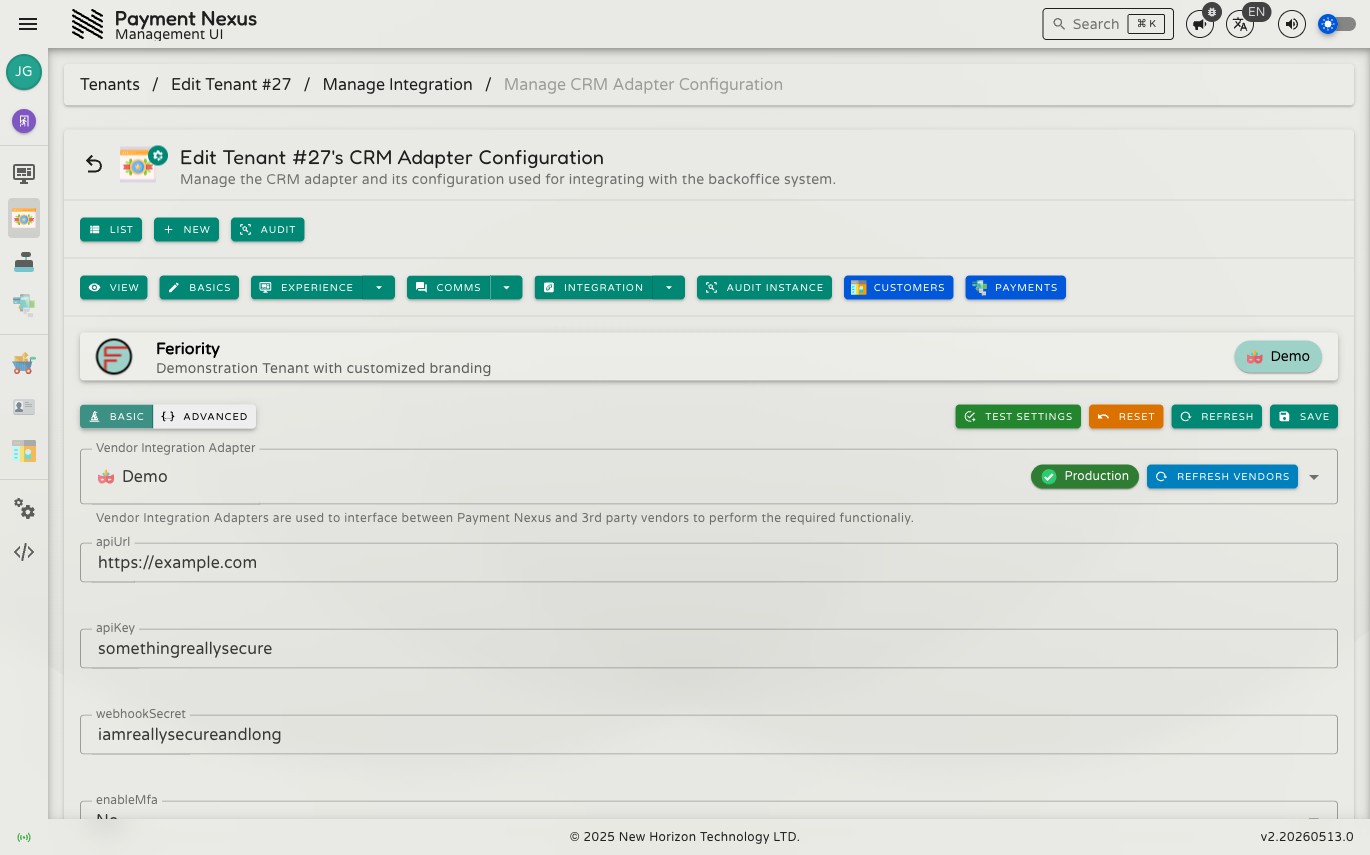
CRM Adapter Configuration
CRM Adapter Configuration is where you connect a brand to its back-office (CRM) platform. The same CRM integration can be used across many brands — each brand has its own separate set of credentials and settings. Because each CRM integration defines its own fields, the form on this page will look different depending on which integration is selected.
Permissions
| Action | Permission required |
|---|---|
| Edit CRM adapter configuration | tenant:update:adapter |
Vendor selector
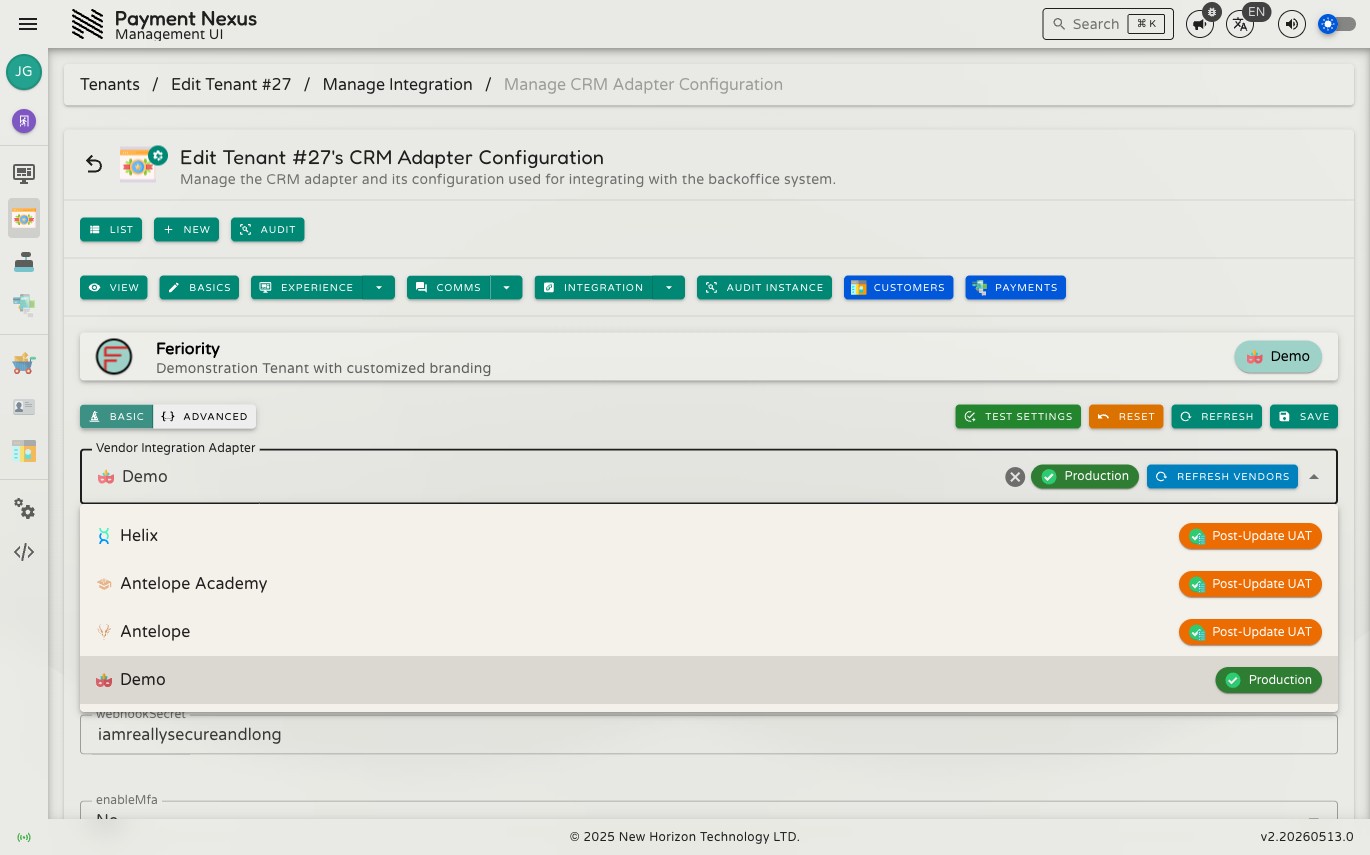
The dropdown at the top of the page lists every CRM integration available in this environment. Each option shows the integration name and its release state.
Refresh Vendors — the button inside the dropdown updates the list without leaving the page. Use this if a new integration has just been made available and is not appearing in the list.
Removing the integration — clicking the × on the selector disconnects this brand from its CRM. The form fields below disappear immediately, but the change is not applied until you click Save.
WARNING
Removing the integration and saving will disconnect this brand from its CRM. Customer notifications, authentication flows, and any other CRM-dependent behaviour will stop working until an integration is selected and configured again.
No integration selected
When no integration is selected the configuration area is empty. You must select an integration before you can configure, test, or save anything.
Basic tab
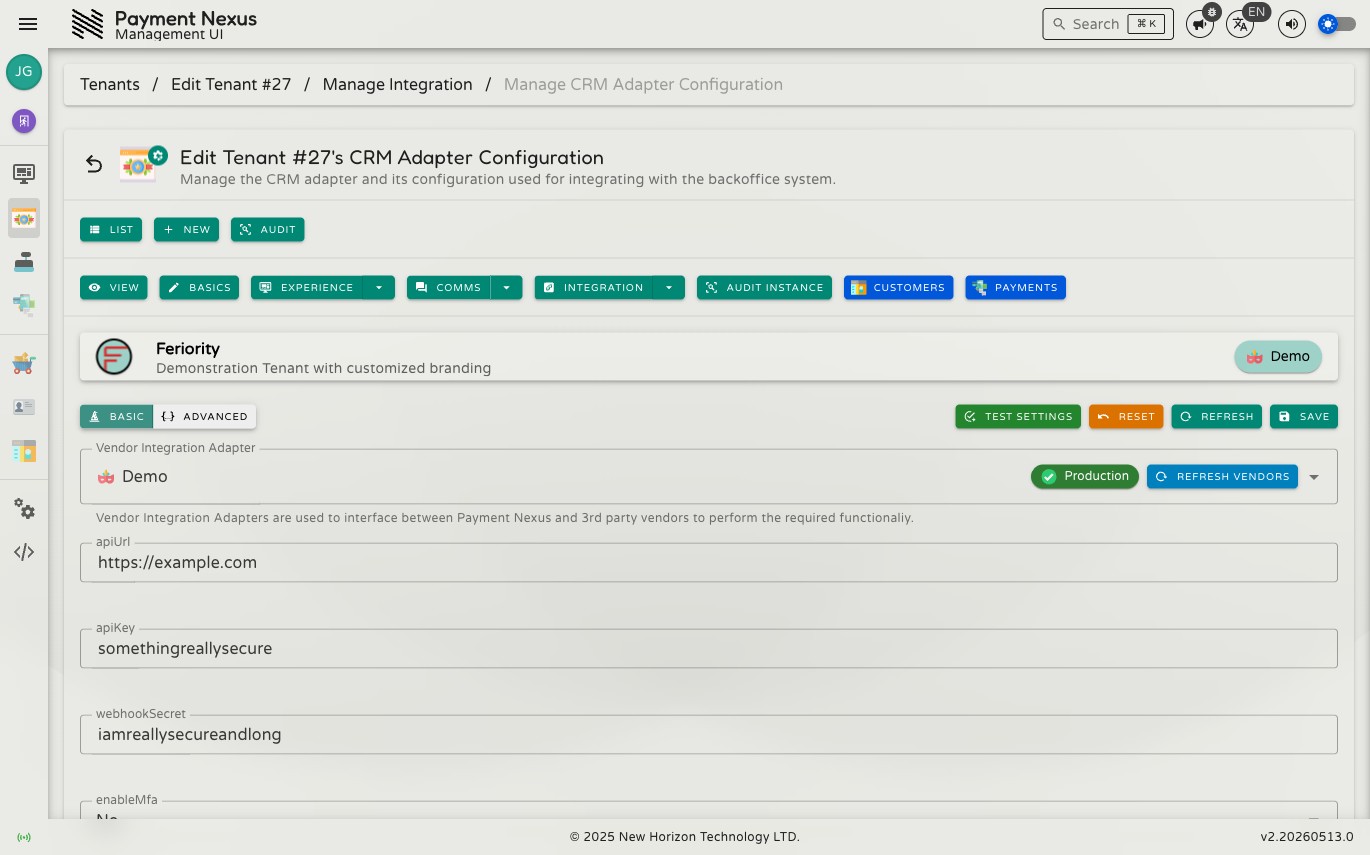
The Basic tab shows the configuration form for the selected integration. The fields are defined by the integration itself, so they vary between CRM providers. Depending on the field, you may see a text input, a number input with up/down controls, a Yes/No toggle, or a dropdown. Required fields must be filled in before you can save.
Switching integrations — if you switch to a different integration, any values whose field names match between the old and new integration are carried over automatically. Fields that do not exist in the new integration are removed.
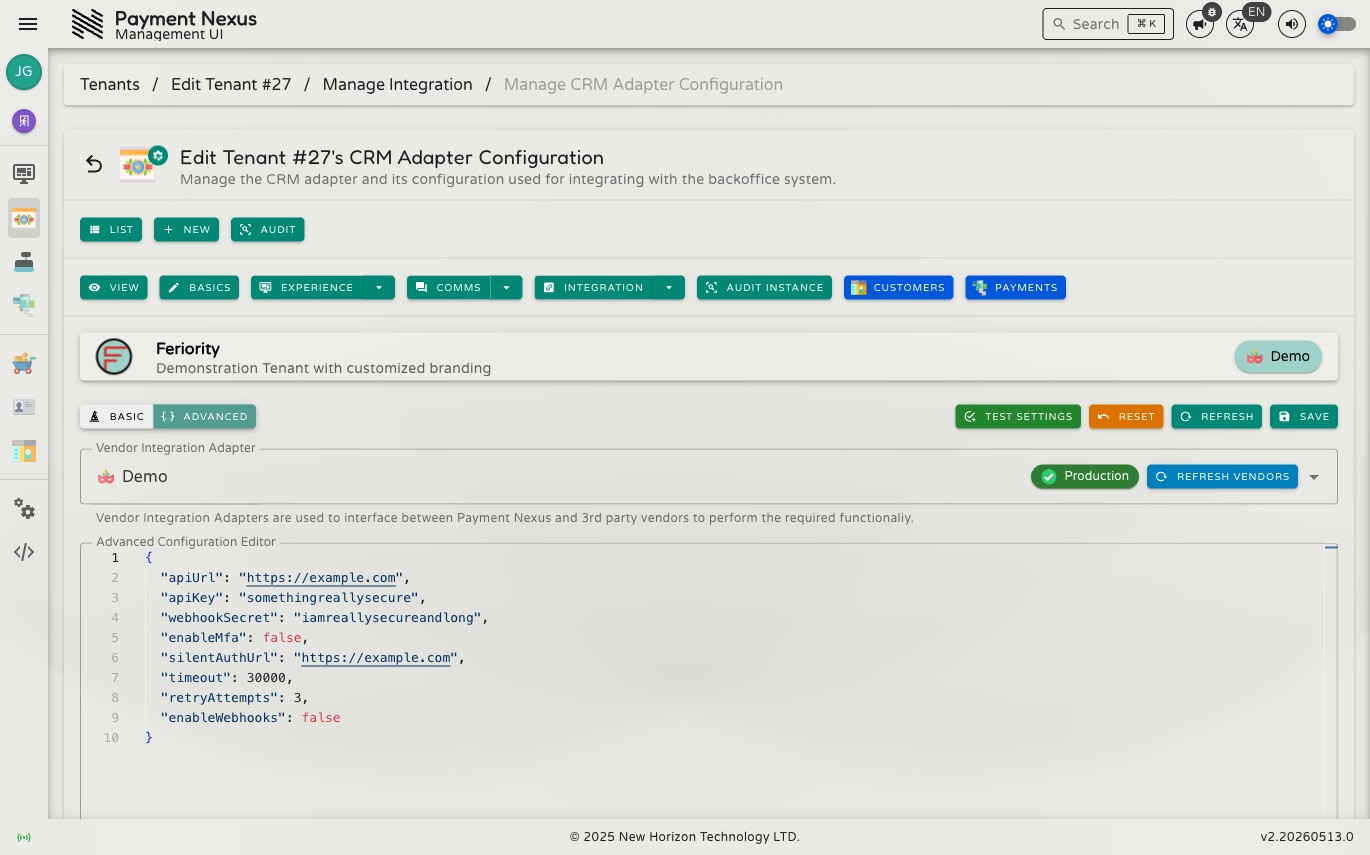
Advanced tab
The Advanced tab shows the complete configuration as raw JSON. Use it when:
- A field you need to set is not visible on the Basic tab
- You want to paste in a known-good configuration from another source
- You need to find and fix a configuration error that the Basic tab is not surfacing
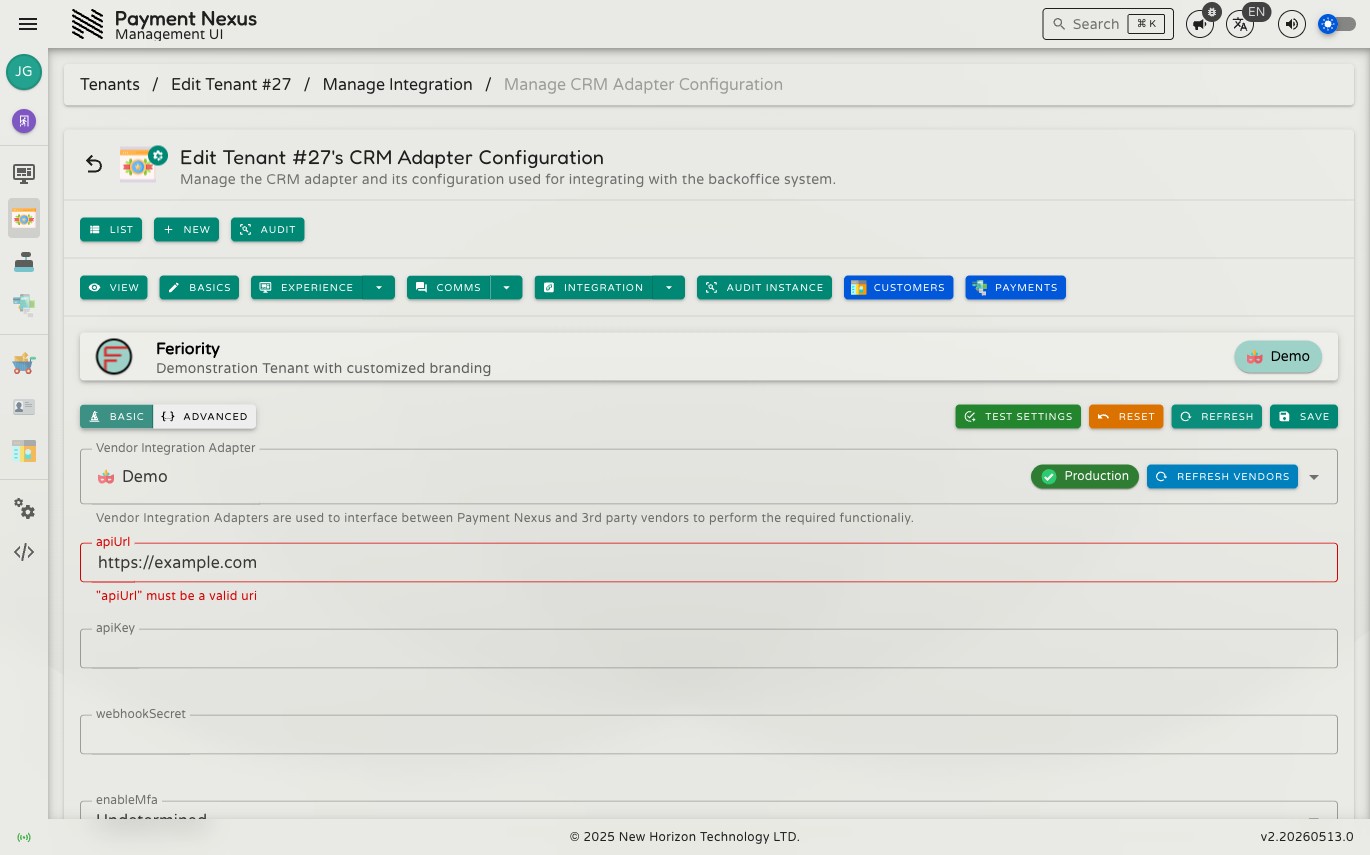
Whatever you edit in the Basic tab is instantly reflected in the Advanced tab, and vice versa — they show the same data in different forms. On save, the JSON is checked against the integration's rules; invalid values will be rejected with an error.
TIP
If saving fails with a validation error and you cannot spot the problem on the Basic tab, switch to the Advanced tab and inspect the raw JSON — the problematic field is often easier to find there.
Toolbar actions
| Action | Color | Description |
|---|---|---|
| Test Settings | Blue | Checks whether the current configuration can successfully connect to the CRM |
| Reset | Orange | Discards all unsaved changes and restores the last saved values |
| Refresh | Blue | Reloads the saved configuration from the server |
| Save | Blue | Saves the current integration selection and all configuration values |
Test Settings
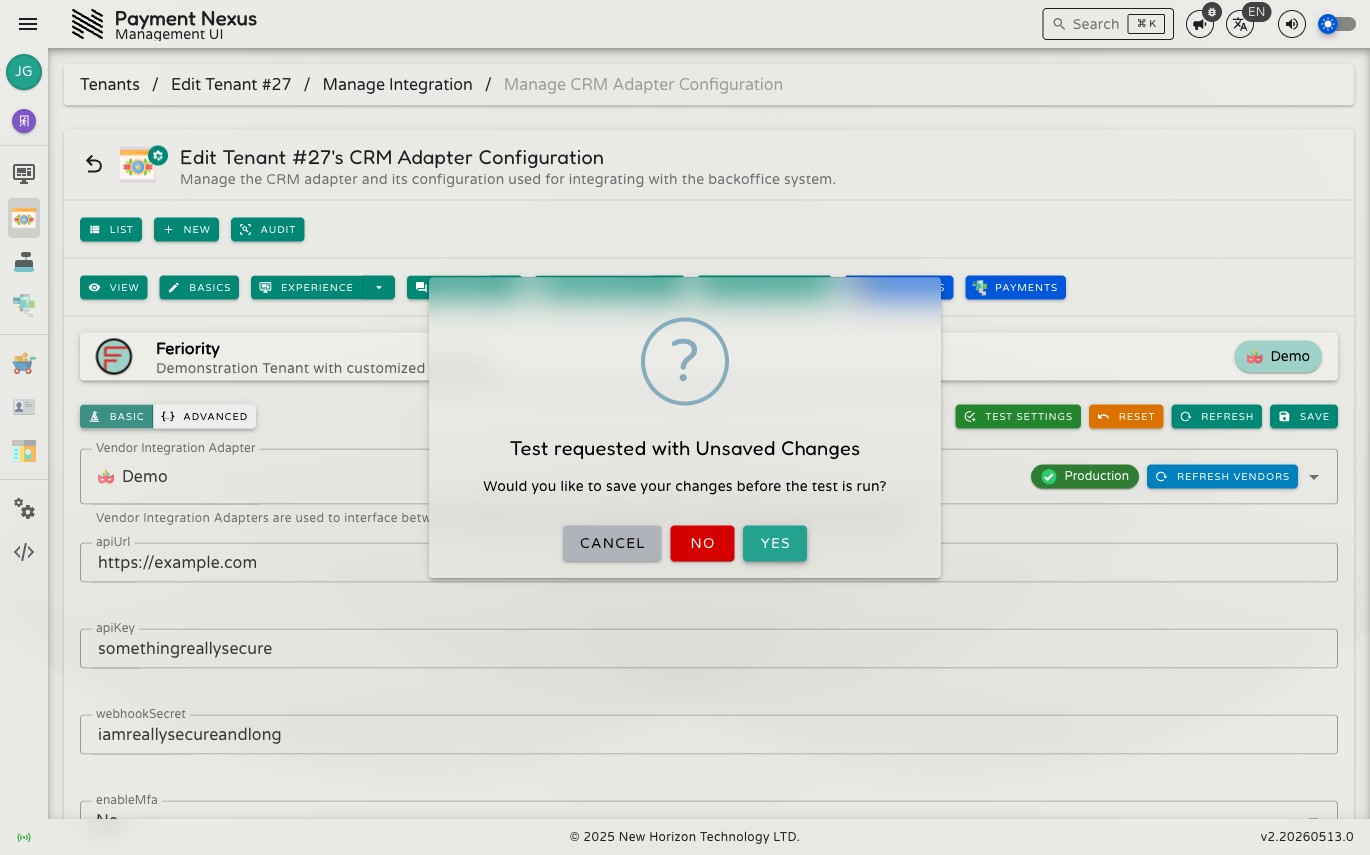
Test Settings sends the current configuration to the CRM integration and checks whether it can connect. If there are unsaved changes on the form when you click it, a prompt appears asking what to do first:
| Choice | Effect |
|---|---|
| Yes | Saves your changes first, then runs the test |
| No | Runs the test immediately against your current unsaved values — nothing is saved |
| Cancel | Goes back without running the test or saving anything |
All fields on the form are locked while the test is running. The test can take up to a minute.
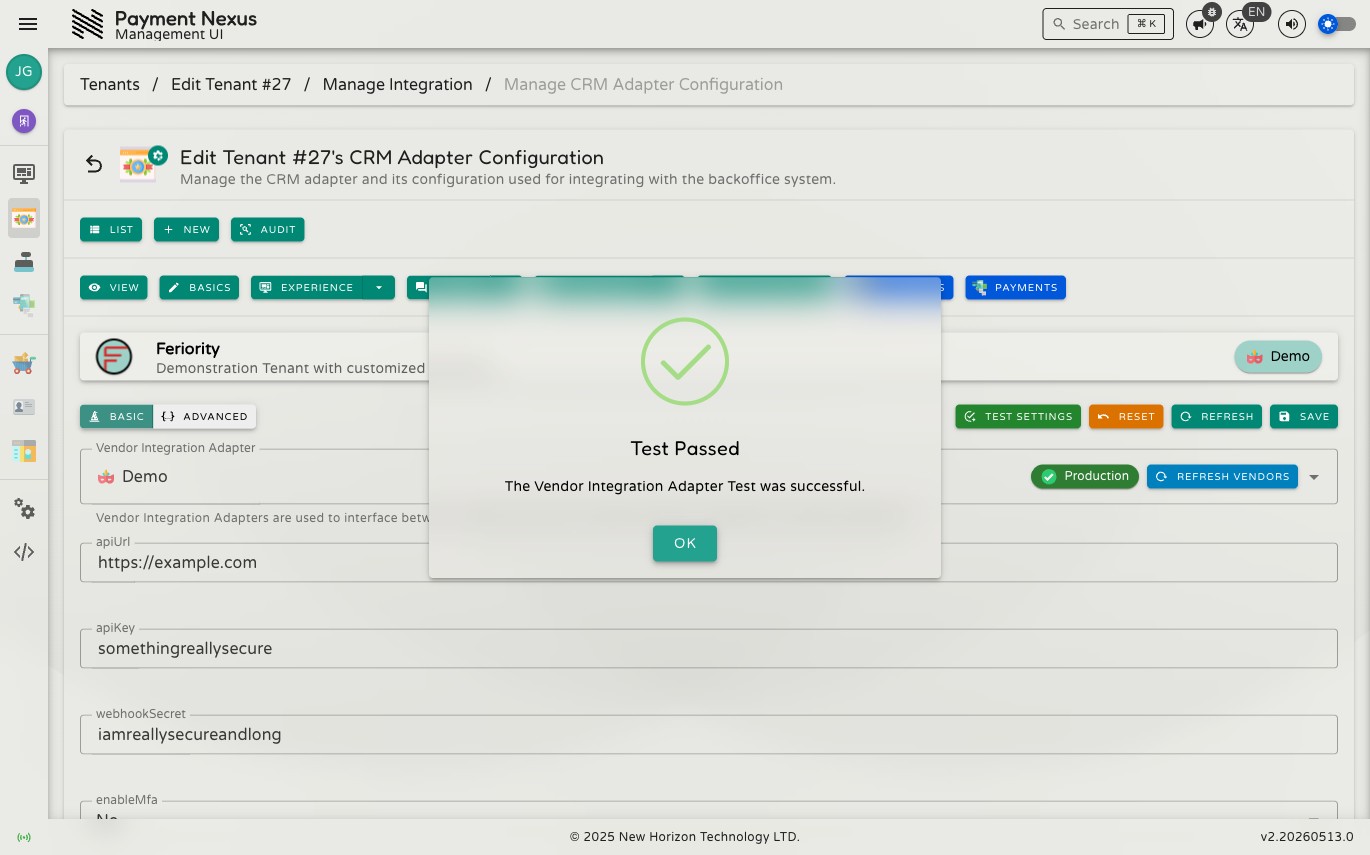
Test passed
A success message confirms the integration could connect and authenticate with the CRM using the configuration you provided.
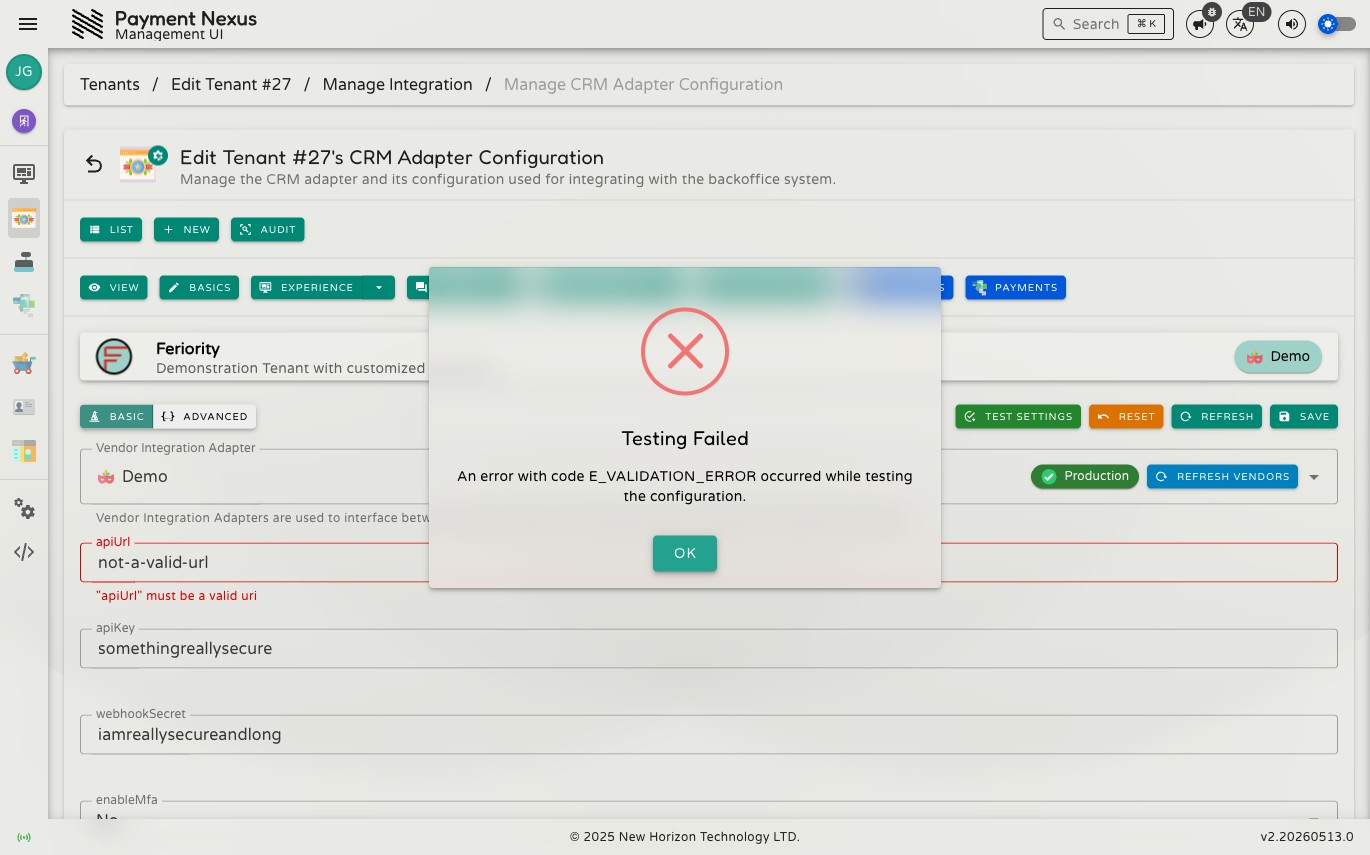
Test failed
A failure message shows what went wrong. There are two common causes:
- Invalid configuration values — a required field is empty, or a value is in the wrong format (for example, a field that expects a URL contains plain text). Correct the field on the Basic or Advanced tab and test again.
- Connection or authentication failure — the values are correctly formatted but the CRM rejected them (for example, a wrong API key or an endpoint that could not be reached). The error message will describe what the CRM reported.
TIP
Always run Test Settings after changing credentials or endpoints before relying on this brand's CRM integration in production.