

Appearance
Skip to content
Searching & Filtering
Every directory has a search field and a filter builder to help you find the records you need. Whether you're investigating a specific transaction, reviewing activity for a tenant, or pulling a filtered set for a compliance check — both tools work together. Results must satisfy the search term AND any active filter conditions at the same time.
Search Field
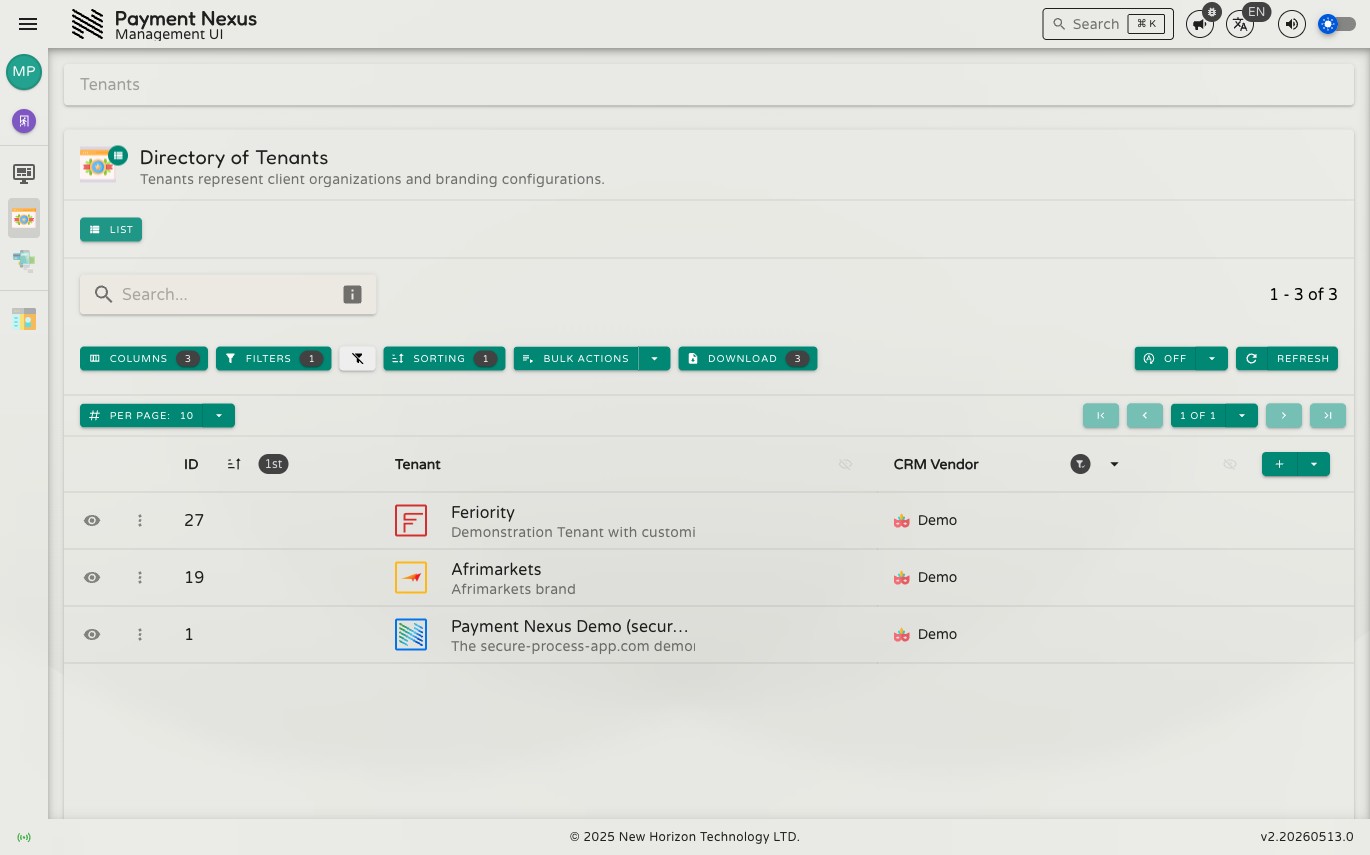
The search field is in the toolbar at the top of every directory. Start typing and results update automatically after a short pause. Clear the field to return to the full list.
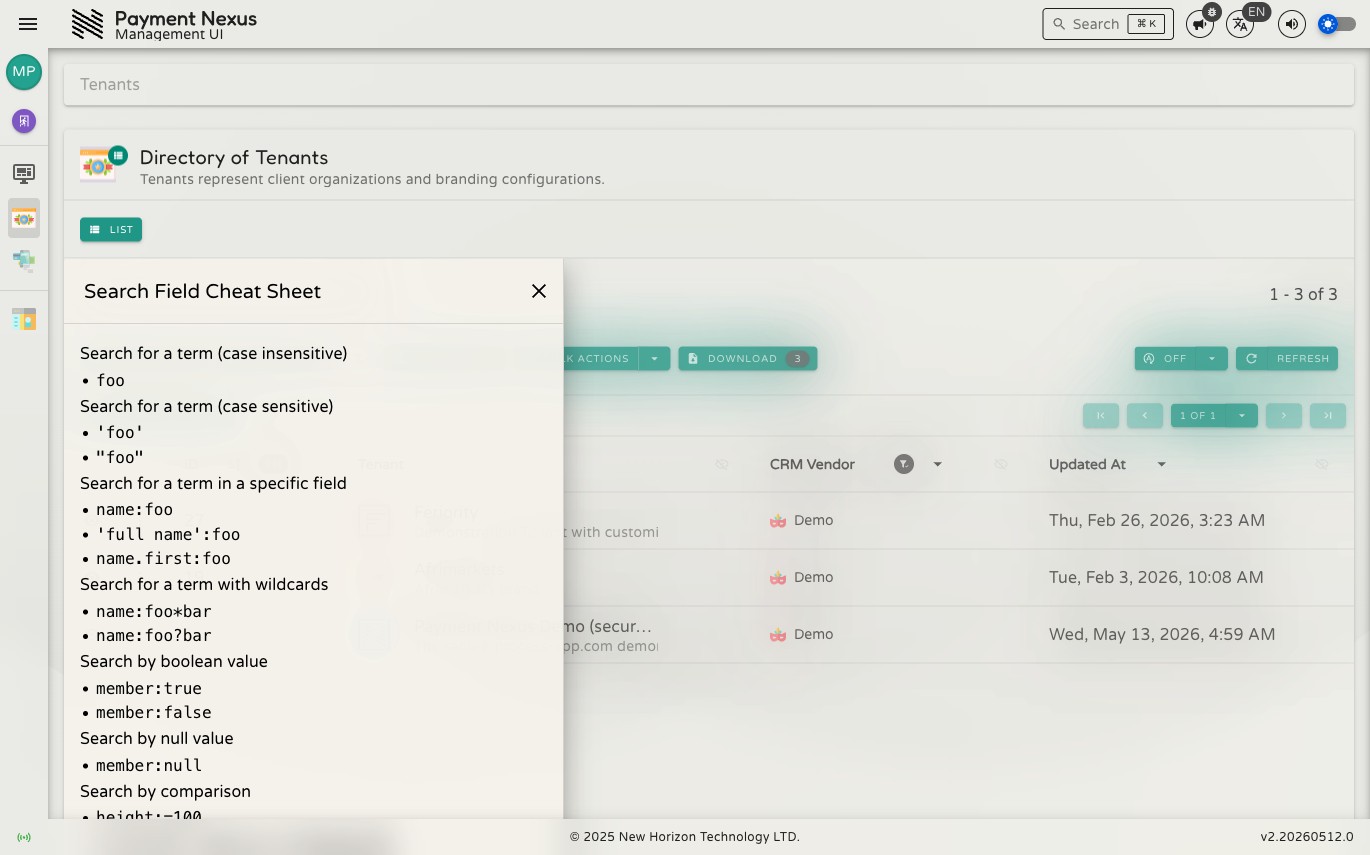
The search field accepts plain keywords or full Lucene query syntax for precise matching. For a syntax reference, click the i icon inside the search field — it opens a cheat sheet drawer listing every supported pattern with examples. See Power Search for the full guide.
Column Header Quick Filter
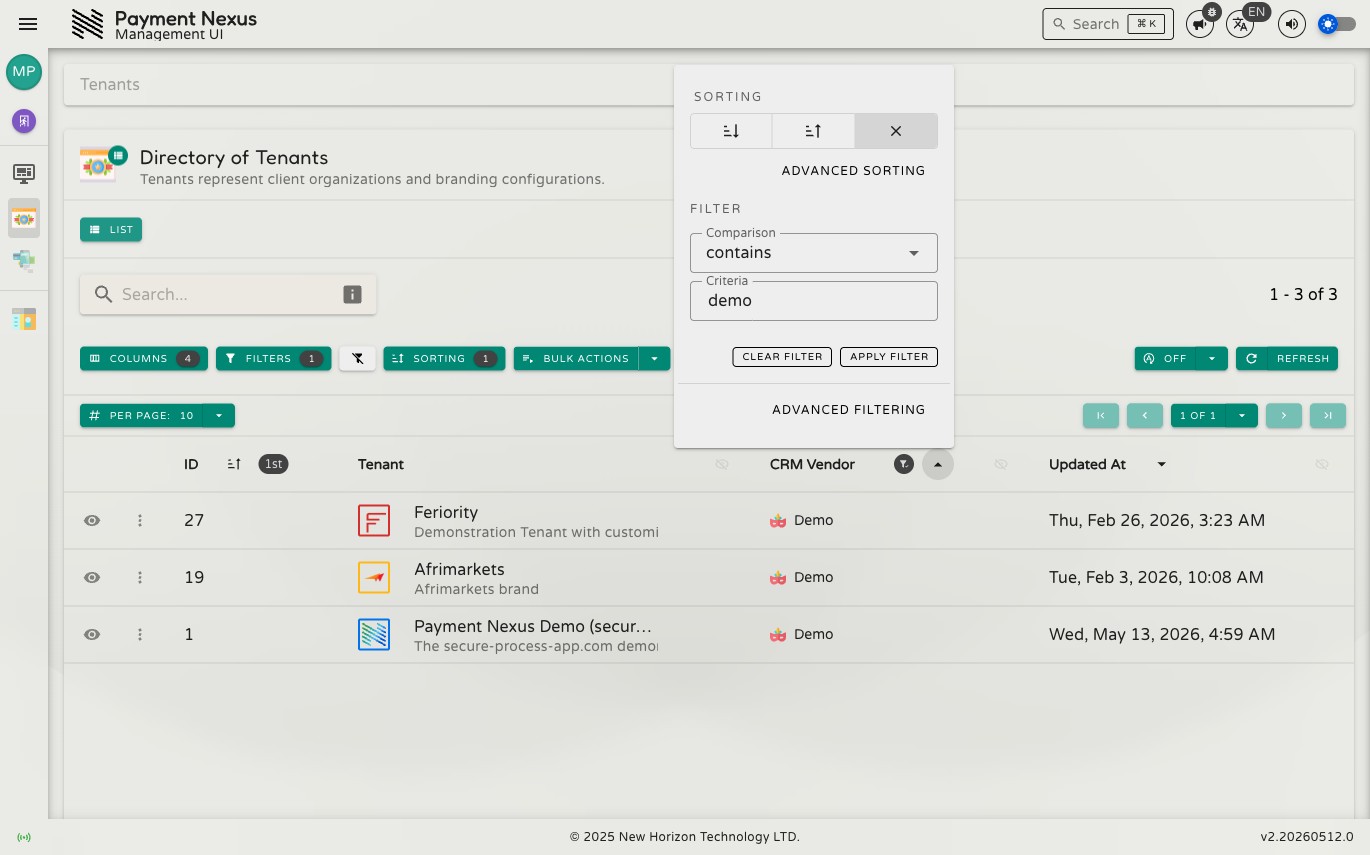
For a fast single-field filter, you don't need to open the filter drawer at all. Click the filter icon on any filterable column header to open a quick filter panel for that column:
The panel has three sections:
- Sorting — sort the column ascending, descending, or clear the sort
- Advanced Sorting — open the full sort drawer for this column
- Filter — choose a comparison operator and enter a value, then click Apply Filter. Click Clear Filter to remove it.
- Advanced Filtering — jump straight to the filter builder with this column pre-selected
When a filter is active on a column, the filter icon changes to indicate it. The column filter integrates with the main filter builder — you can see and edit it there too.
Filter Builder
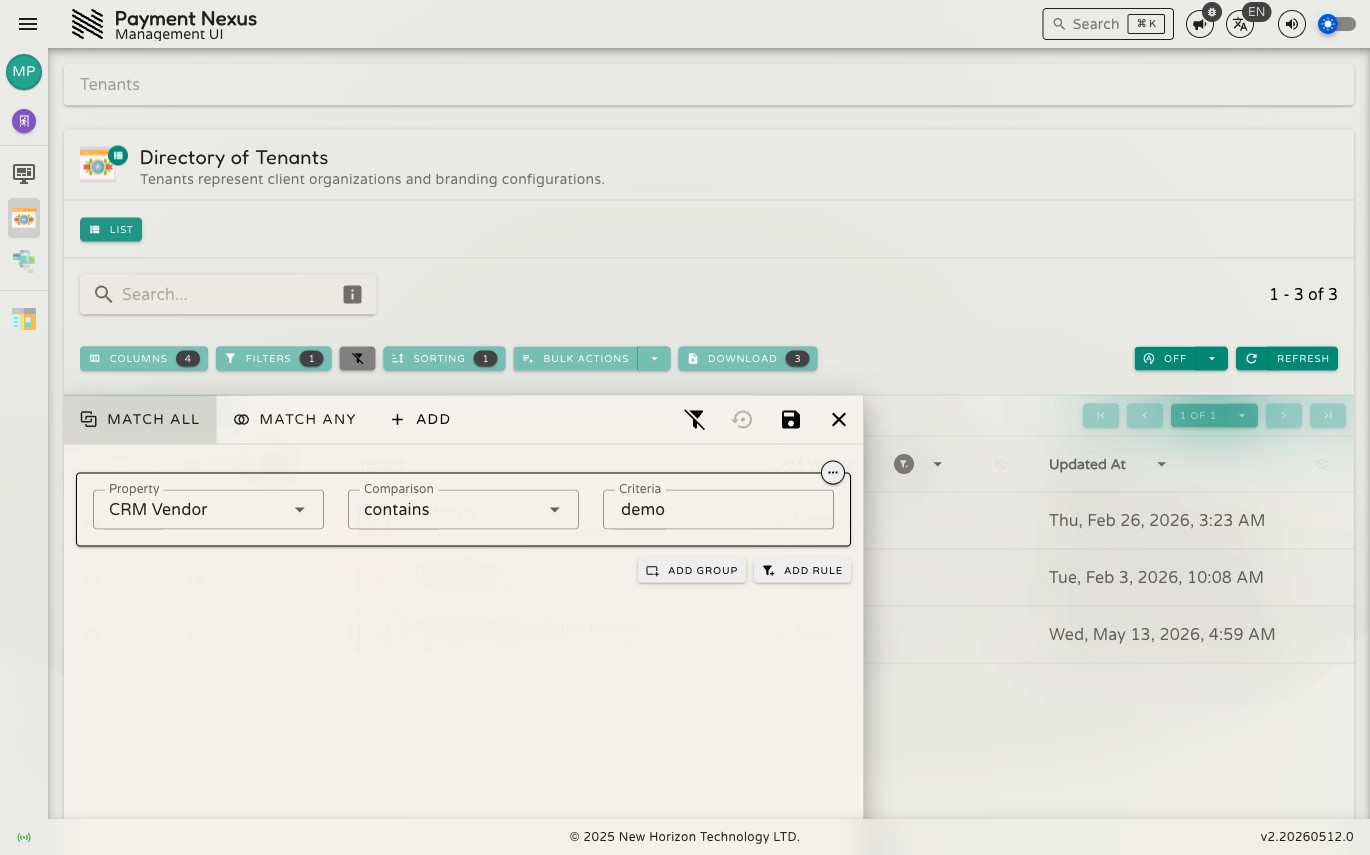
For multi-field or complex conditions, open the filter builder using the Filters button in the toolbar. The number badge on the button shows how many conditions are currently active across all groups.
Adding a Condition
Click Add Rule to add a condition row. Each condition has three parts:
- Property — the field to filter on (e.g. Status, Created At, Tenant)
- Operator — how to compare (see Operators below)
- Value — what to compare against (varies by operator and field type)
AND / OR Logic
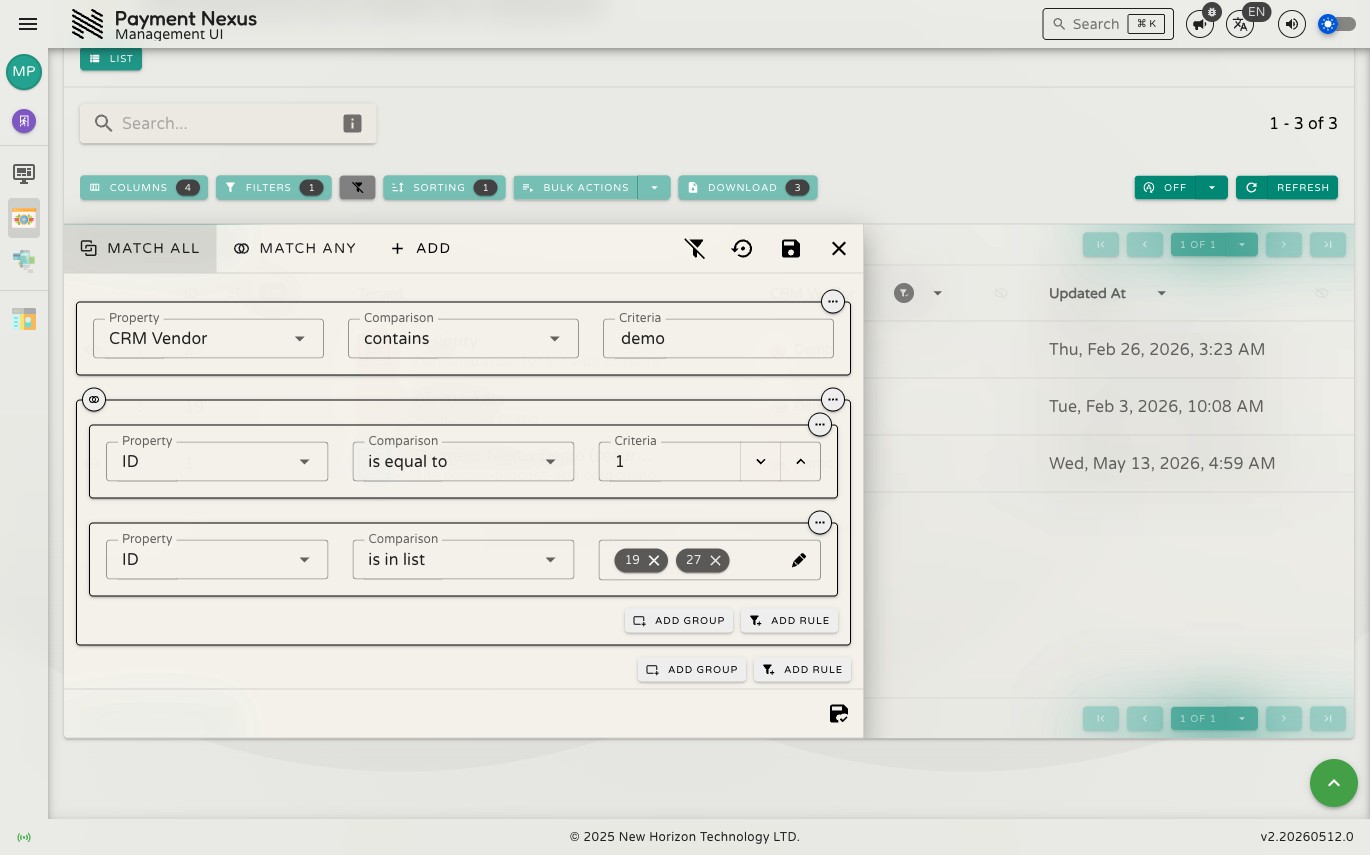
The Match All / Match Any toggle at the top of the drawer controls how conditions in that group are combined:
- Match All (AND) — a record must satisfy every condition
- Match Any (OR) — a record must satisfy at least one condition
Condition Groups
Click Add Group to create a nested group inside the current one. Each group has its own AND/OR toggle, letting you express logic like:
Status is "failed" AND (Currency is "EUR" OR Currency is "GBP")
Groups can be nested as deeply as needed. A delete icon on each group or condition row removes it.
Operators
Available operators depend on the field type:
| Field type | Example operators |
|---|---|
| Text | equals, not equals, contains, does not contain, starts with, ends with, is set, is not set, is null, in list, not in list |
| Number | equals, not equals, greater than, less than, between, not between, is set, is null, in list |
| Boolean | equals, not equals, is set, is null |
| Date / DateTime | equals, before, after, between, today, yesterday, this week, last month, this quarter, and other relative periods |
Applying, Discarding, and Clearing Filters
- Save — applies the current filter and refreshes results. If any conditions are incomplete or invalid, a warning icon appears on the Save button and saving is blocked until corrected.
- Reset to Saved — discards unsaved changes and reverts the drawer to the last applied state.
- Clear All — removes all filter conditions entirely. The button only appears when filters are active.
If you close the filter drawer with unsaved changes, a confirmation dialog asks whether to Save, Discard, or Cancel (keep the drawer open).
Quick Clear
When filters are active, a clear button appears next to the Filters button in the toolbar. Click it to remove all active filter conditions in one step without opening the filter drawer.
Shareable Filter State
Your search query, filter conditions, AND/OR settings, and column/sort configuration are all encoded in the page URL. Bookmark a view you return to regularly, or share the URL with a colleague — they'll land on the same results, subject to their own access permissions. This is useful for handing off an investigation, flagging a specific result set in a support ticket, or sharing a filtered view in a team channel.
Power users
The search field accepts the same Lucene syntax that the filter builder uses under the hood — type conditions directly instead of building them through the UI. See Power Search.